Editing your designs lets you adjust details so they look the way you want.
For example, you might want to replace an Artwork you’ve already placed in a Space, try a different frame, or change the wall color to see which version works better. Editing makes it easy to test different options and keep your designs consistent with your needs.
Just follow these steps:
- Head to the My Designs section and click on the design you’d like to edit.
- On the edit page, you can:
- Add or remove Artworks to refresh your layout.
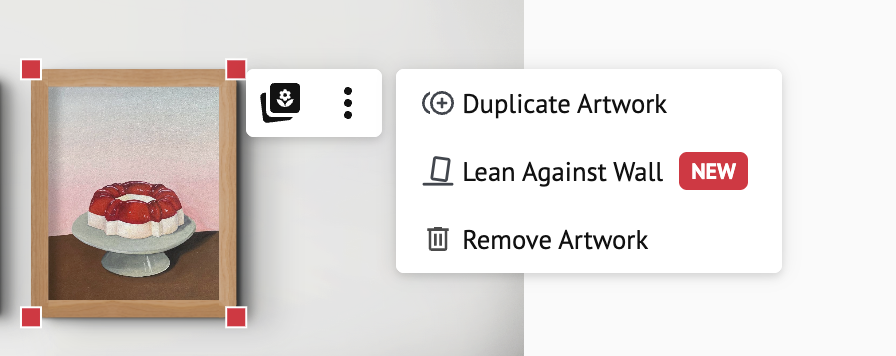
- Replace, duplicate, or remove an Artwork using the image icon and the three-dot menu next to it.
- Make an Artwork look like it’s leaning against the wall with Lean Against Wall, or hang it back with Hang on Wall. Learn more in How To Make an Artwork Lean Against the Wall in a Space.
- Change frames to find the perfect match for your piece.
- Adjust lighting, size, and position for a flawless presentation.
- If it’s a Smart Space, experiment with wall colors to match the mood you’re aiming for with the Customize button.

- If it’s a Personal Space, adjust the wall size to fit your scene.
- Crop your design for the perfect fit on social media or e-commerce
- Add or remove Artworks to refresh your layout.

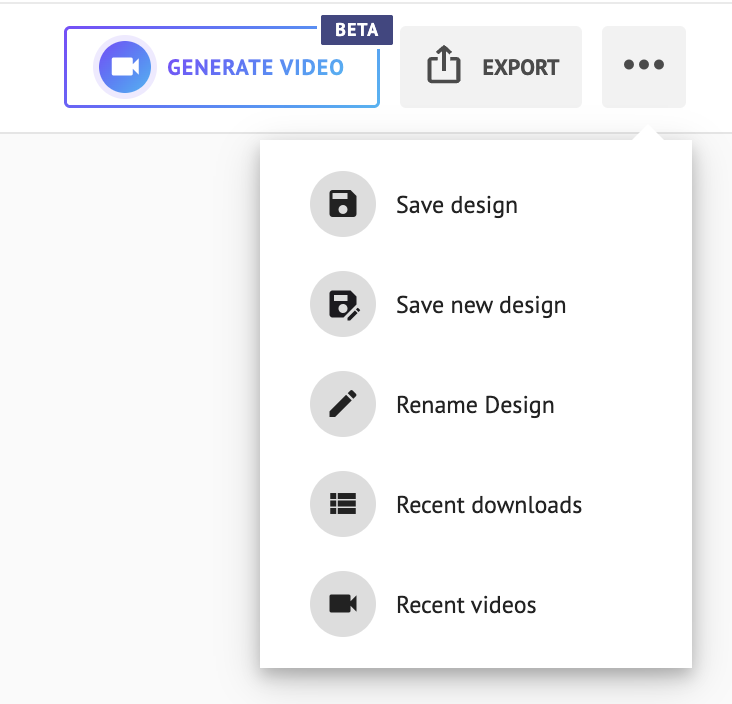
3. When you’re happy with the result, open the three-dot menu located at the top right corner of the screen, and choose Save Design to overwrite the existing version, or Save as New Design to create a new version while keeping the original intact.