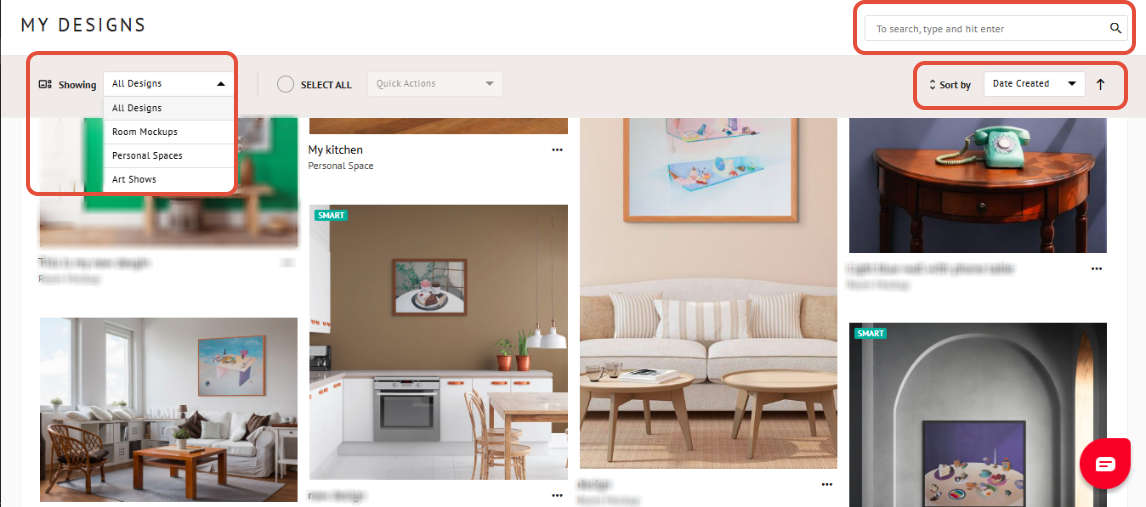
The My Designs section is where all your saved creations live, including Room Mockups, Personal Spaces, and Art Show Planner designs. Anytime you place Artworks in these spaces and save them as a design, they're stored here for easy access and management.
Table of Contents
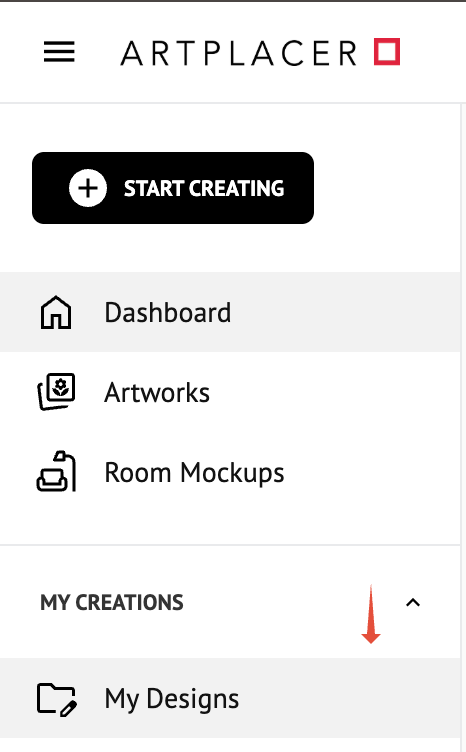
To open this section, go to Sidebar > My Creations, and then click on My Designs. From here, you can edit, crop, download, share, rename, or duplicate your designs, all in one place.
Folders
Folders let you group your designs into projects, collections, or any category that fits your workflow.
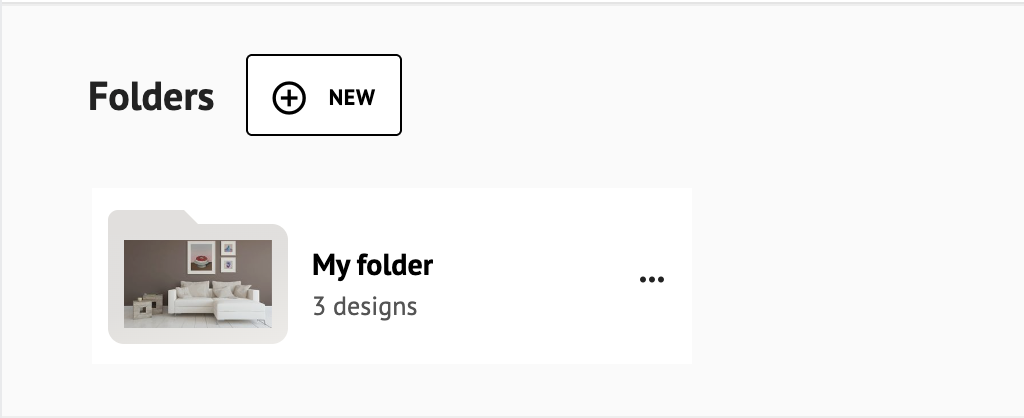
To create one, click + New, enter a name, and click Save, your folder will appear at the top of the page right away.
To move designs into a folder, you have two options:
- Drag and drop a design directly onto an existing folder.
- Select one or more designs using the circle in the top-right corner of each card, then click Quick Actions > Move.
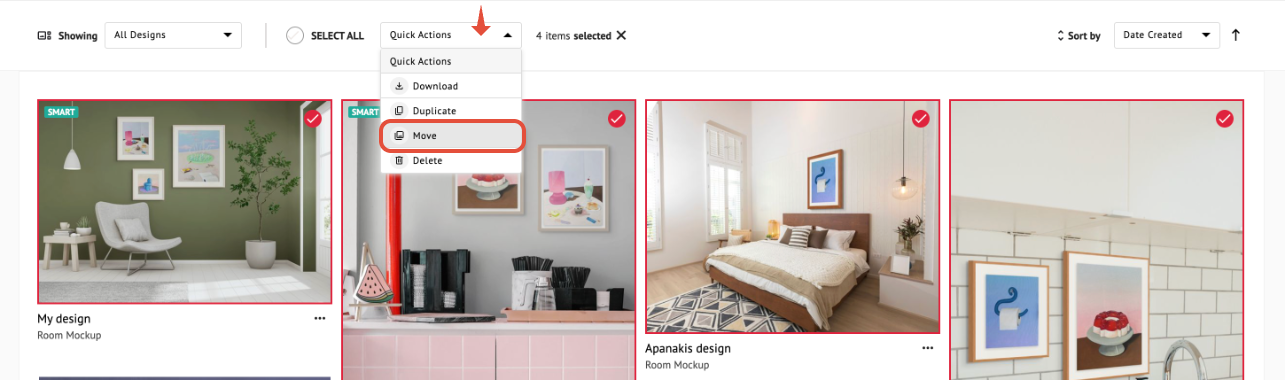
A panel will open where you can choose an existing folder from the dropdown or create a new one from scratch.
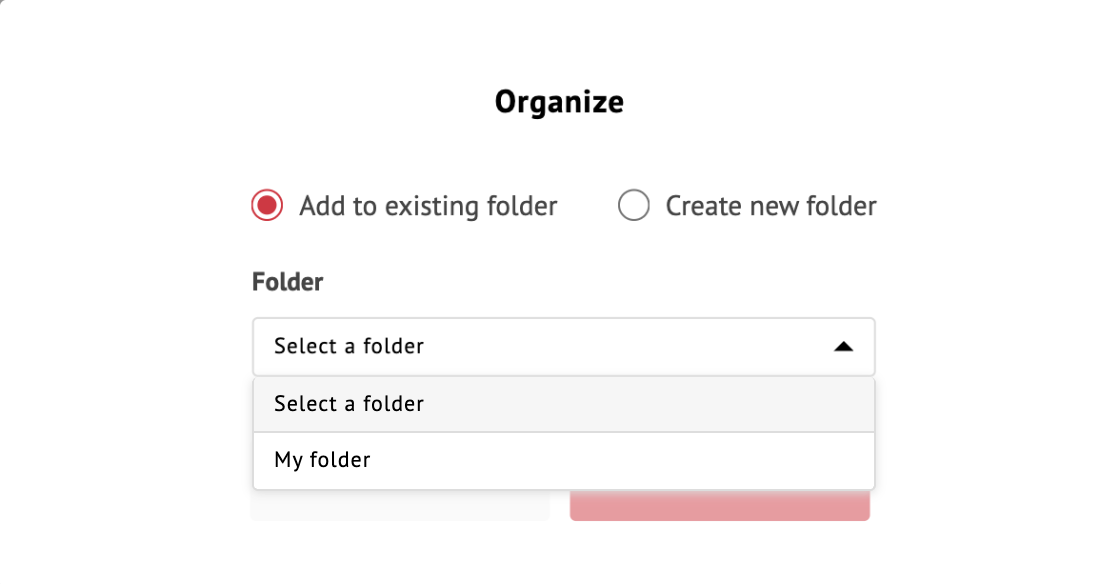
Click Save to confirm.
Moved designs will no longer appear in the main My Designs view, you'll find them inside their folder going forward.
Videos
When you generate a video from one of your designs, it's saved automatically in a folder inside MY DESIGNS called "Generated Videos". You don't need to do anything, just open the folder to find it.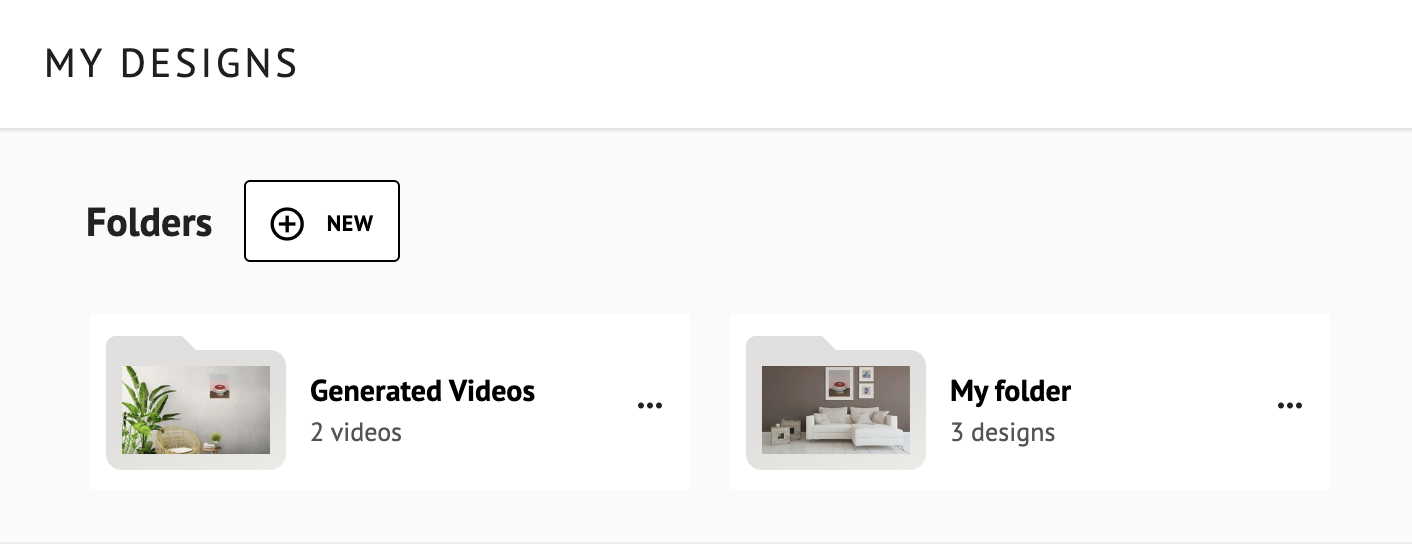
If you already had videos before this update, you'll find them in that same folder.
From there, you can:
- Delete the videos you no longer need.
- Move them to other folders.
To learn how to create a video, check out the Room Mockups to Video article
Managing Multiple Designs
To make your workflow smoother, the Quick Actions feature allows you to manage multiple designs at once.
- Select multiple designs to delete or download them in bulk. You can also duplicate a design to create a new version without starting from scratch, perfect for experimenting with variations.
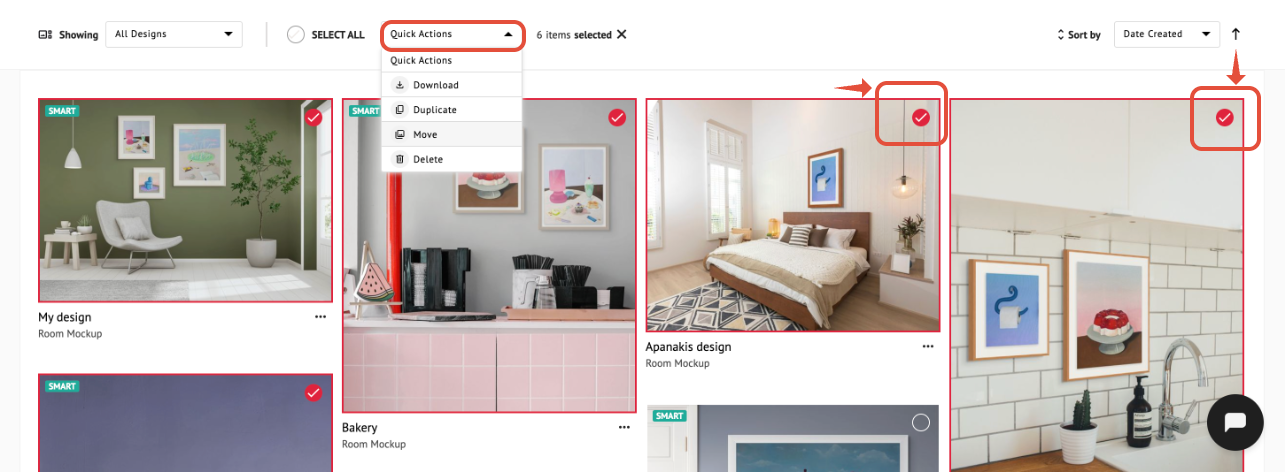
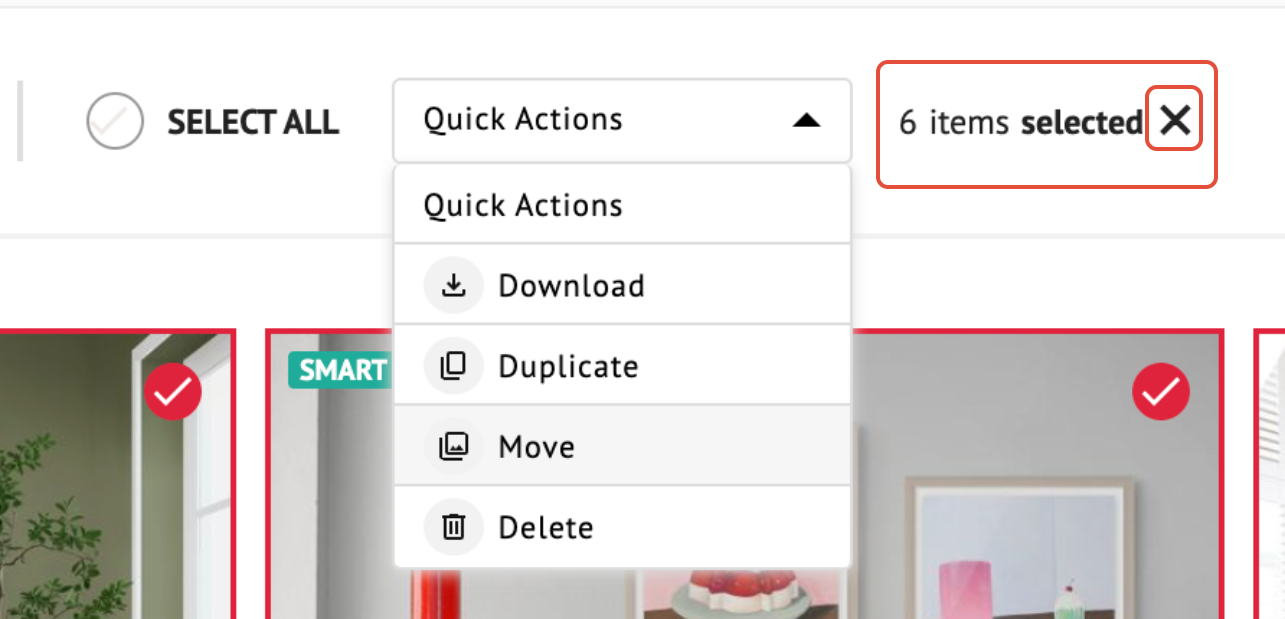
- To deselect your chosen designs, simply click the "X" next to the number of selected items.
Quick Preview
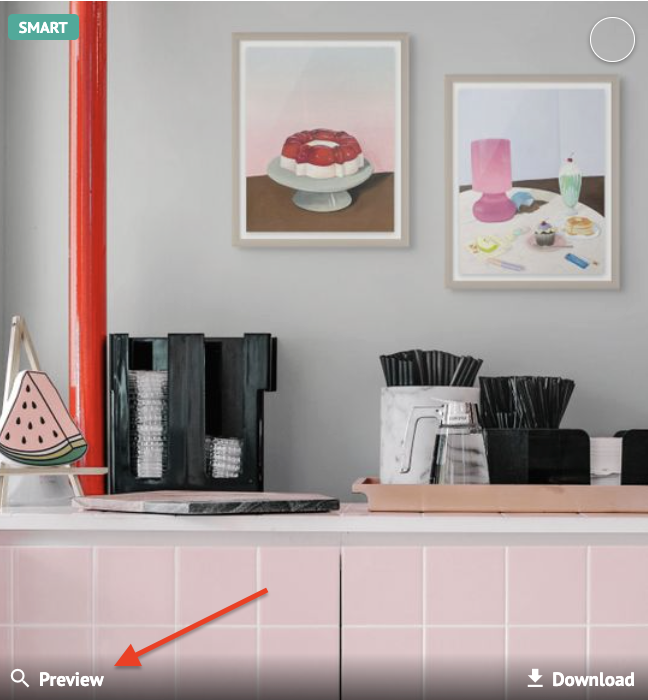
Hover over any design and click Preview to open a full-screen view of your design in preview mode, where you'll find multiple options, such as:
- Download the design.
- Delete it from your collection.
- Share it directly.
- Use the Try option to open the design in edit mode and continue refining it.
In this view, you'll also see useful information such as the design's name and the measurements of the space you're working with.
You can also hover over a specific design to quickly download it in its default size or share it directly, without opening the full preview.
Search and Sort
You can easily keep your workspace organized using our sorting and search options:
- Use the search bar to quickly find a design by title.
- Sort your designs by type, for example, Room Mockup, Personal Space, or Art Show Planner.
- Order your designs by creation date or alphabetically by title. Click the arrow icon to toggle between ascending and descending order.