Cropping a Personal Space allows you to adjust its size so it’s ready to share on social media or upload to e-commerce platforms.
Table of Contents
- Crop a Personal Space When Creating It
- Crop a Personal Space After Placing an Artwork
- Crop a Personal Space From My Designs
You can crop a Personal Space at three different stages:
- When creating it (after uploading the image of the room).
- After placing an artwork inside the space

- From your saved designs in the My Designs section.
Crop a Personal Space When Creating It
- Head to the Personal Spaces Section.
- Click NEW

- Upload the image of the room.
- Adjust the perspective and/or lightning of the space > Click Save and Continue
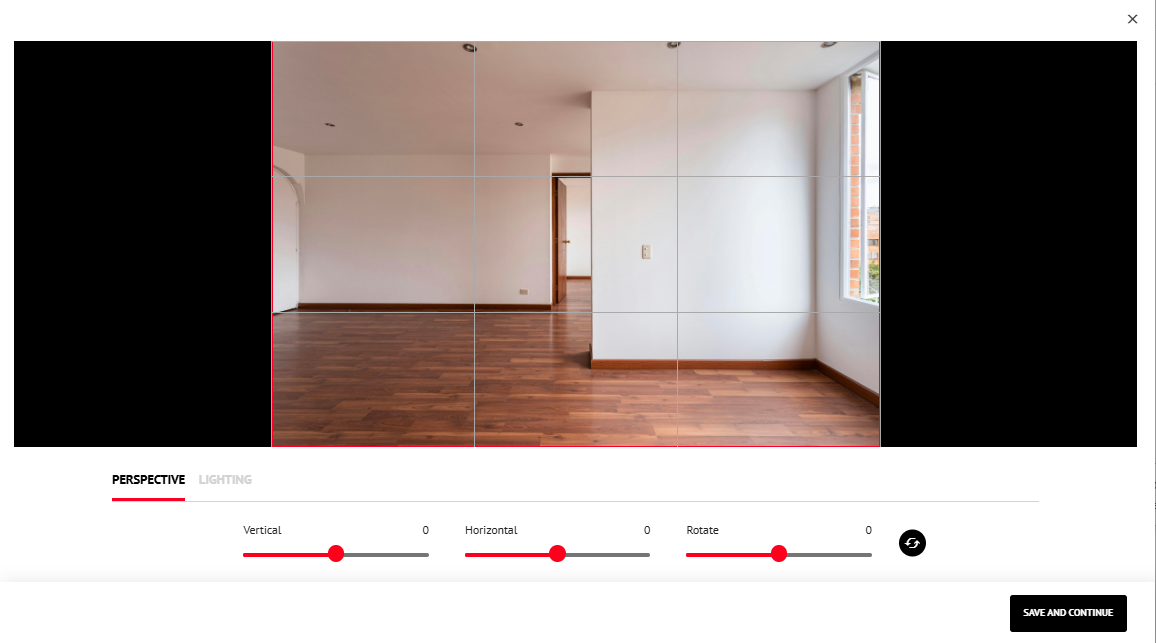
- Drag the cropping handles on the sides or corners to adjust the frame > Click Save and Continue
- Click CONFIRM to save your crop.
Crop a Personal Space After Placing an Artwork
- On the editing page, click Crop Space (bottom left corner).

- Choose one of the cropping methods:
- Manual Crop: Drag the handles on the edges to crop one side, or use the corners to crop two sides at once.
- Custom Size: Open the dropdown (set to Full Size by default), select Custom Size, and enter a Width (W) and Height (H). Use the lock icon to keep the aspect ratio. Reset with the reset icon if needed.
- Standard Size: Open the dropdown and select a standard format optimized for social media or e-commerce.
- Once finished, click DONE.
- Manual Crop: Drag the handles on the edges to crop one side, or use the corners to crop two sides at once.
Crop a Personal Space From My Designs
You can also edit and crop Personal Spaces that you’ve already saved in the My Designs section, following the same steps as above.