Table Of Contents
- Add Ambient Sound to an existing exhibition
- Add Ambient Sound to a new exhibition.
- Previewing your Ambient Sound
- ⚠️ Note for users with previously uploaded audio
Virtual Exhibitions now support ambient sound. You can upload an MP3 file that plays on a loop while visitors explore your exhibition. This article explains how to add and manage Ambient Sound in your Virtual Exhibition.
Add Ambient Sound to an existing exhibition
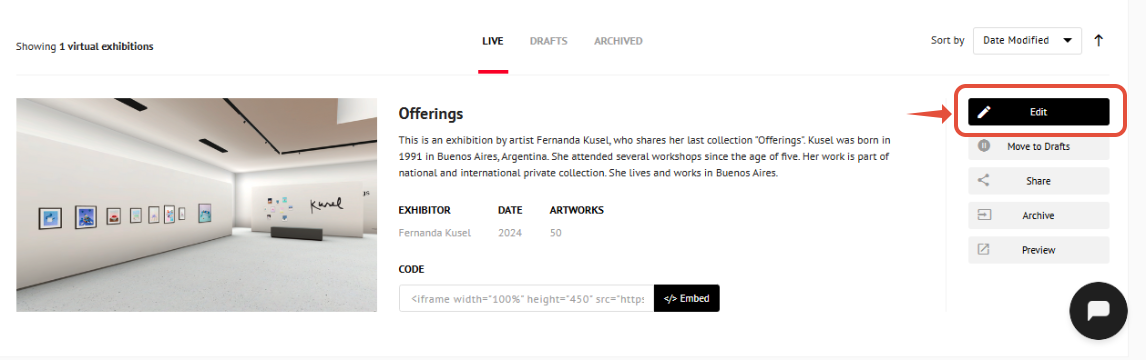
To begin, open the Virtual Exhibitions section by going to Sidebar > My Creations > Virtual Exhibitions.
If you already have an exhibition, click Edit.
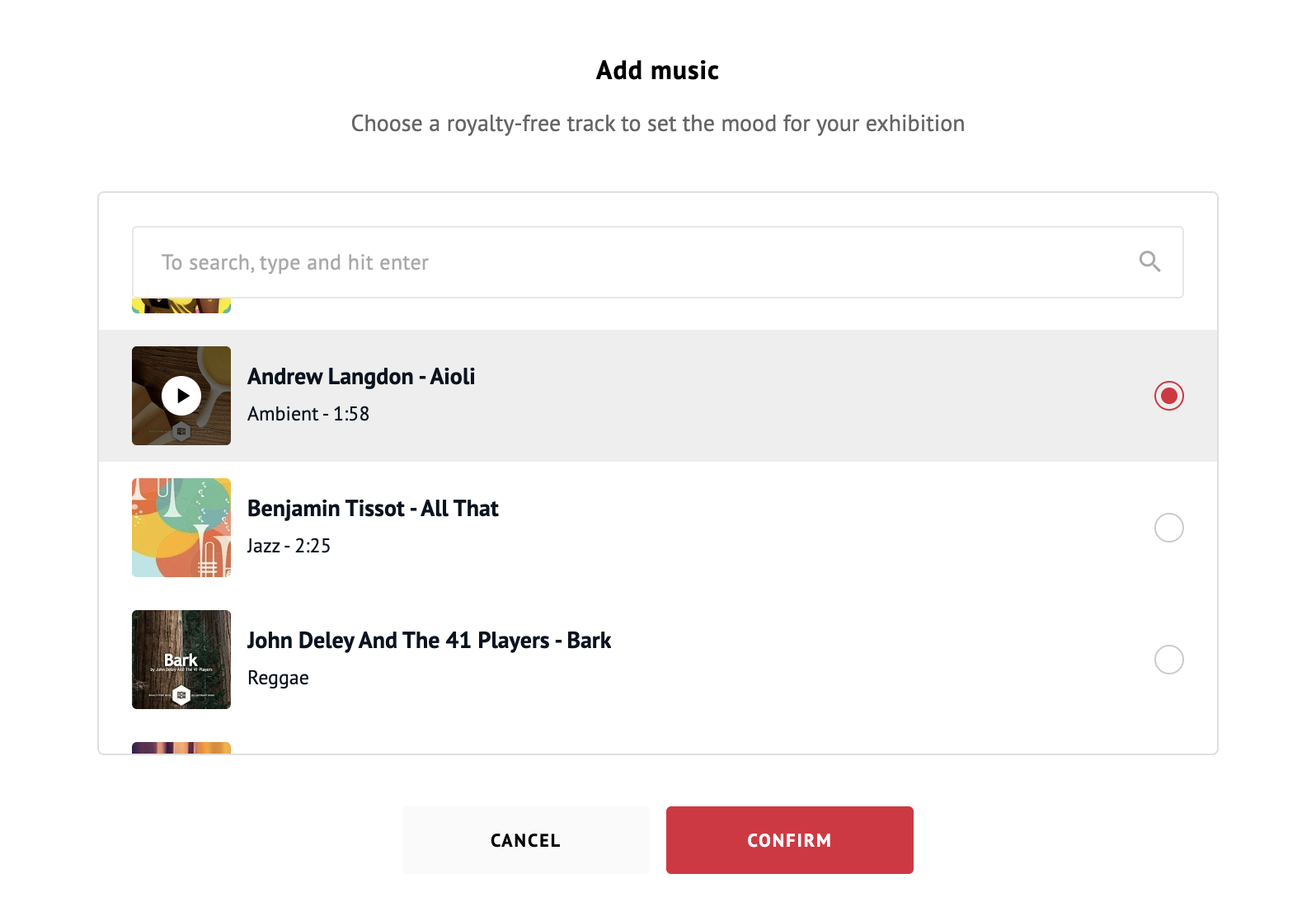
In edit mode, you'll find the Ambient Sound option in the Exhibition Details panel. From there:
- Click Add music.

- Browse or search ArtPlacer's royalty-free music library.
- Select a track, you'll see the track name, genre, and duration listed.
- Click Confirm to apply your selection.
Add Ambient Sound to a new exhibition.
If you’re creating a Virtual Exhibition from scratch, open the Virtual Exhibitions section by going to
Sidebar > My Creations > Virtual Exhibitions.
Click "Create Virtual Exhibition" or "NEW" > select your venue.
Once you select your venue, the steps are the same as when editing an existing exhibition.
Once your venue is selected, follow the same steps as above to add music from the Exhibition Details panel.
Previewing your Ambient Sound
Once the audio file is uploaded, you can continue curating your exhibition as usual.
⚠️ Note: During the curation process (edit mode), audio playback is not available. You'll be able to hear the track when you preview your exhibition.
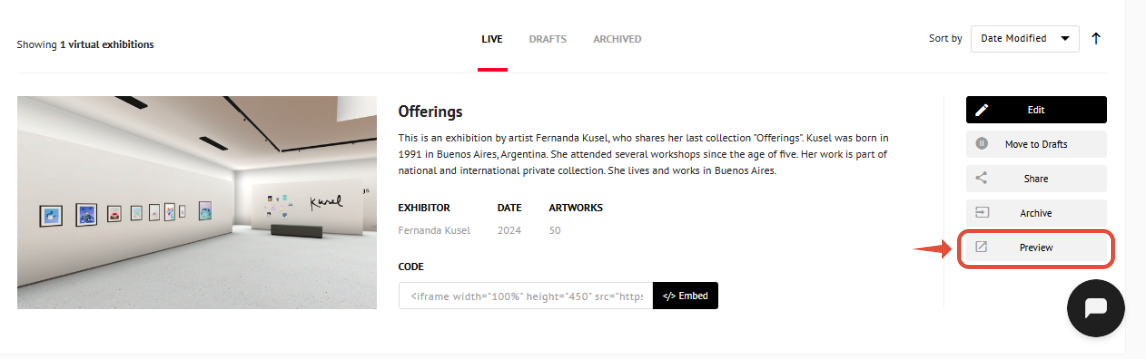
When you preview your exhibition, you’ll see a volume control in the top-right corner. Visitors can use this control to adjust the volume or completely mute and unmute the ambient sound.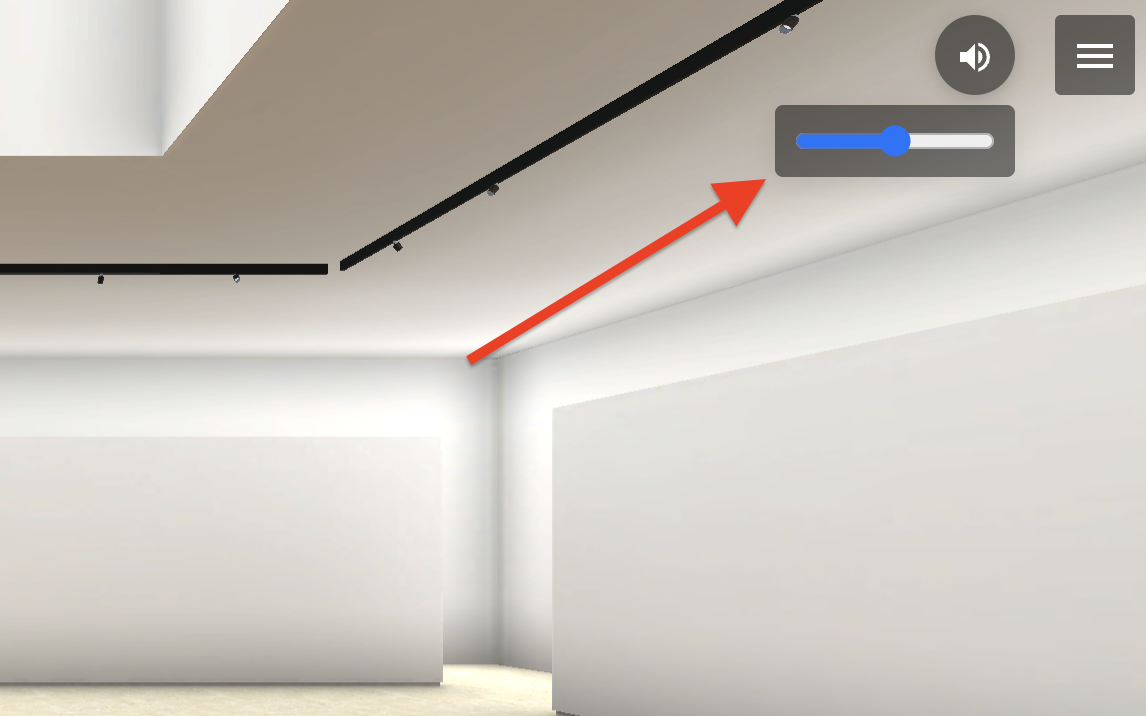
The audio file will play on a continuous loop.
⚠️ Note for users with previously uploaded audio
If you uploaded a custom MP3 file in an earlier version of your exhibition, that file will remain active. However, if you choose to delete it, you will no longer be able to upload a custom MP3, only tracks from ArtPlacer's music library will be available going forward.