Table Of Contents
- Before You Start
- How Personalization Works
- Step-by-Step: Setting Up Your Personalized Home
- Editing Your Preferences
- Sorting Your Personalized Library
The Room MockUps library offers a wide selection of spaces to showcase your art.
To help you find the rooms that best fit your practice, you can personalize your library so that the spaces most relevant to you appear first. This article explains how the personalization works and how to set it up.
Before You Start
Once you personalize your Room Mockups Home, the personalization cannot be undone. You'll be able to edit your selections at any time to change what you see, but you won't be able to return to a non-personalized feed.
How Personalization Works
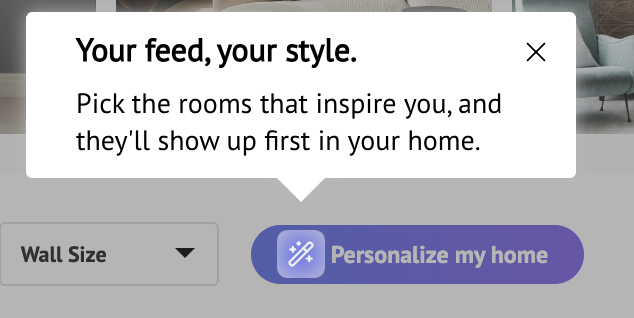
When you enter the Room Mockups library, you'll see a message inviting you to personalize your Home.
To start, you'll need to click the PERSONALIZE MY HOME button. A window will then open showing a curated selection of 40 images. You choose the ones you like the most, and ArtPlacer uses your selections to rank the rooms in your library by affinity with your taste.
Once personalization is active:
- Your library shows the rooms ranked according to your selections.
- The full catalog is still accessible, nothing is hidden, just reordered.
- A new "Personalized"for you section appears in your library.
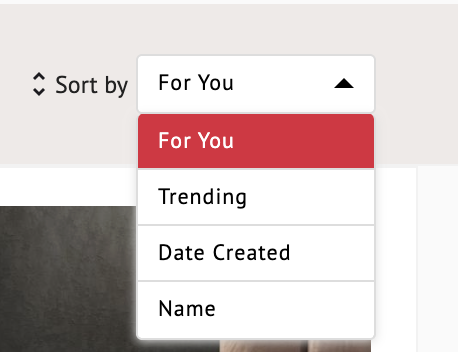
- A new "For You" option becomes available in the Sort by dropdown.
Step-by-Step: Setting Up Your Personalized Home
1. Go to the Room MockUps library. You'll see a message inviting you to personalize your Home, click the "Personalize my home" button to open the selection window. You can also do this later at any time from the same button in your library.
2. Browse the 40 curated images and click on the ones you love. A minimum of 3 selections is required to activate your personalized profile. There is no maximum.
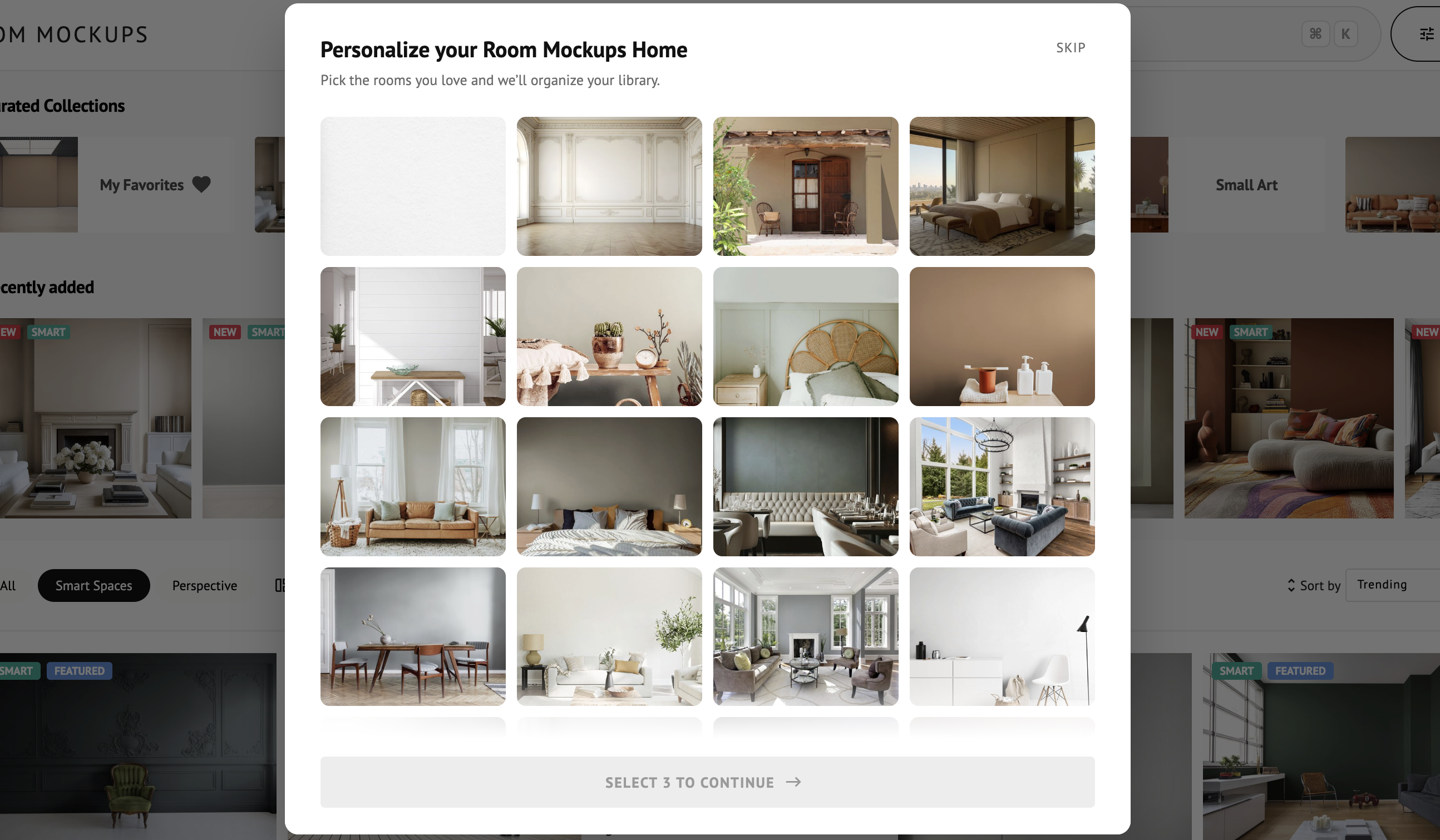
3. Once you reach 3 selections, the button at the bottom unlocks and changes color, now reading PERSONALIZE MY HOME. Click it to confirm.
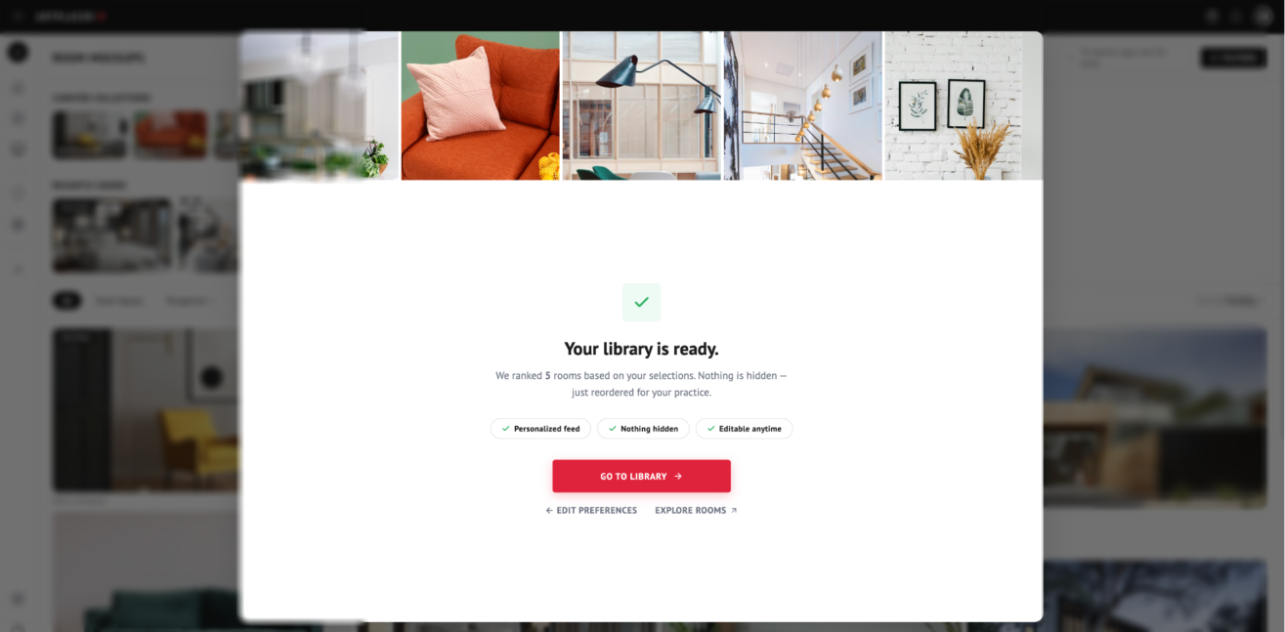
4. A confirmation screen will appear letting you know your library is ready. From there, you can click "GO TO LIBRARY" to start browsing your personalized feed.
Editing Your Preferences
You can update your preferences at any time. In your Room Mockups library, click the same PERSONALIZE MY HOME button to open the selection window again and choose new images.
Sorting Your Personalized Library
After personalization is active, the Sort by dropdown includes a new For You option. This ordering reflects your preferences and cannot be reversed to ascending order.