Table Of Contents
- Where To Start
- Choosing Your Artworks
- Creating Your Mockups
- What You Can Do With Your Mockups
- Download the mockups you like
- See a different set of mockups
Instant Mockups lets you create several mockups automatically from a single Artwork, up to 3 artworks at a time, so you can get beautiful visuals ready to save or download in just a few clicks.
Where To Start
You can start creating Instant Mockups from three places:
1. From the Artworks page
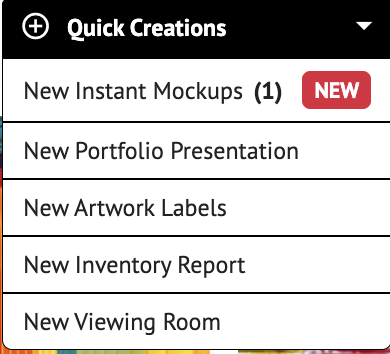
- Open the QUICK CREATIONS menu at the top of the page and click NEW INSTANT MOCKUP. You'll be able to choose your Artworks in the next step.
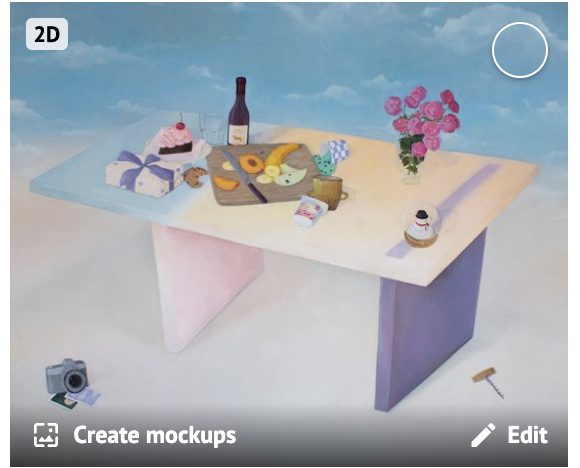
- Or, hover over any Artwork and click CREATE MOCKUPS to start with that single piece.
2. From the sidebar
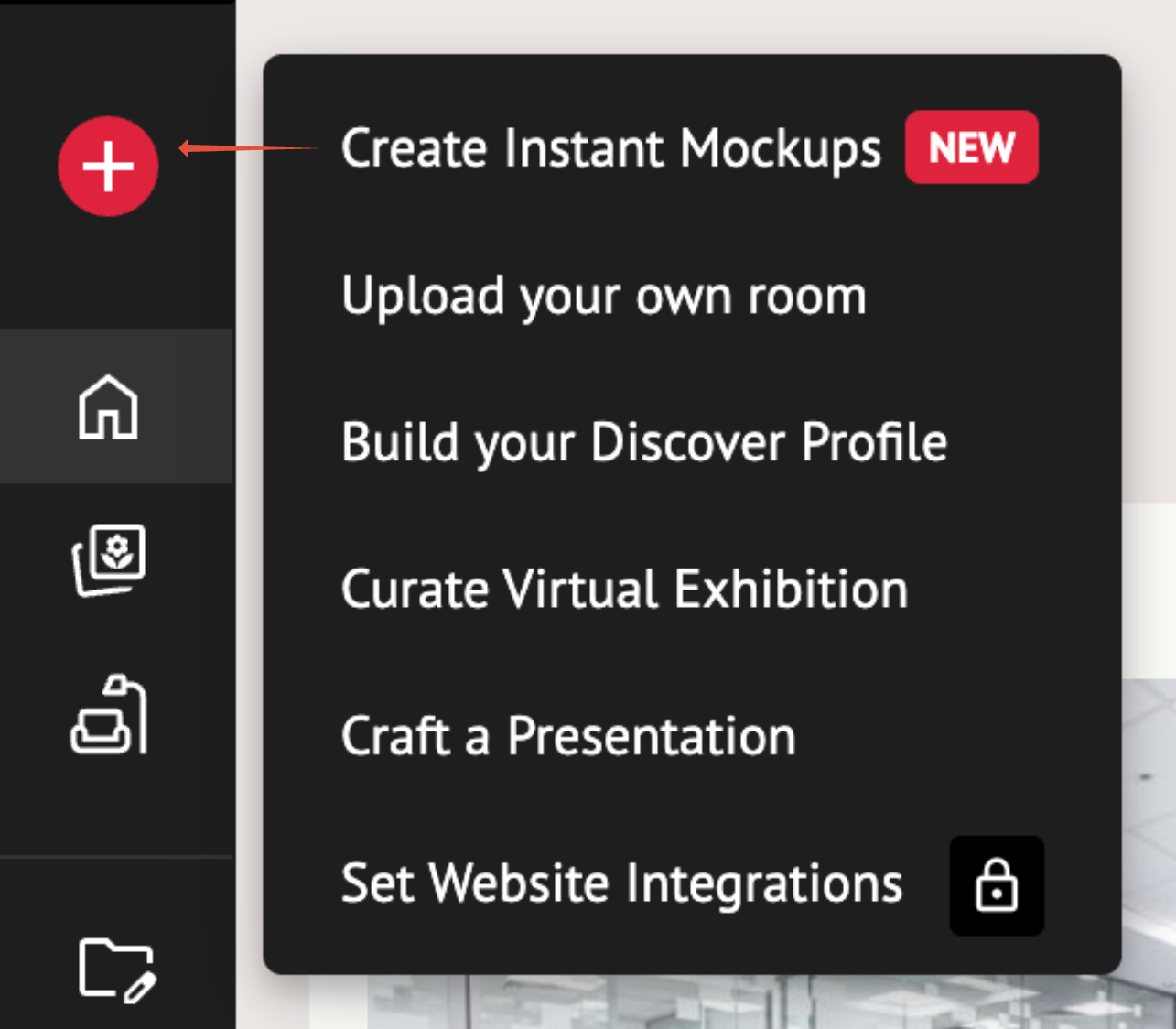
- Click the + button, then click CREATE INSTANT MOCKUPS.
3. From your Room Mockups Library
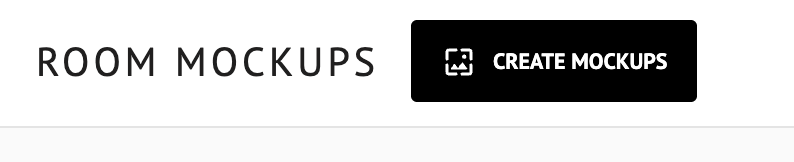
- Click the CREATE INSTANT MOCKUPS button available in your Room Mockups Library.
Choosing Your Artworks
You need to choose at least 1 Artwork, and you can choose up to 3 Artworks at a time.
You'll always get 12 mockups, no matter how many Artworks you pick. Here's how they're divided:
- 1 Artwork → 12 mockups of that Artwork
- 2 Artworks → 6 mockups of each
- 3 Artworks → 4 mockups of each
⚠️ If you try to start with more than 3 Artworks selected, a window will pop up on your screen letting you know you need to go back and unselect some before continuing.
Creating Your Mockups
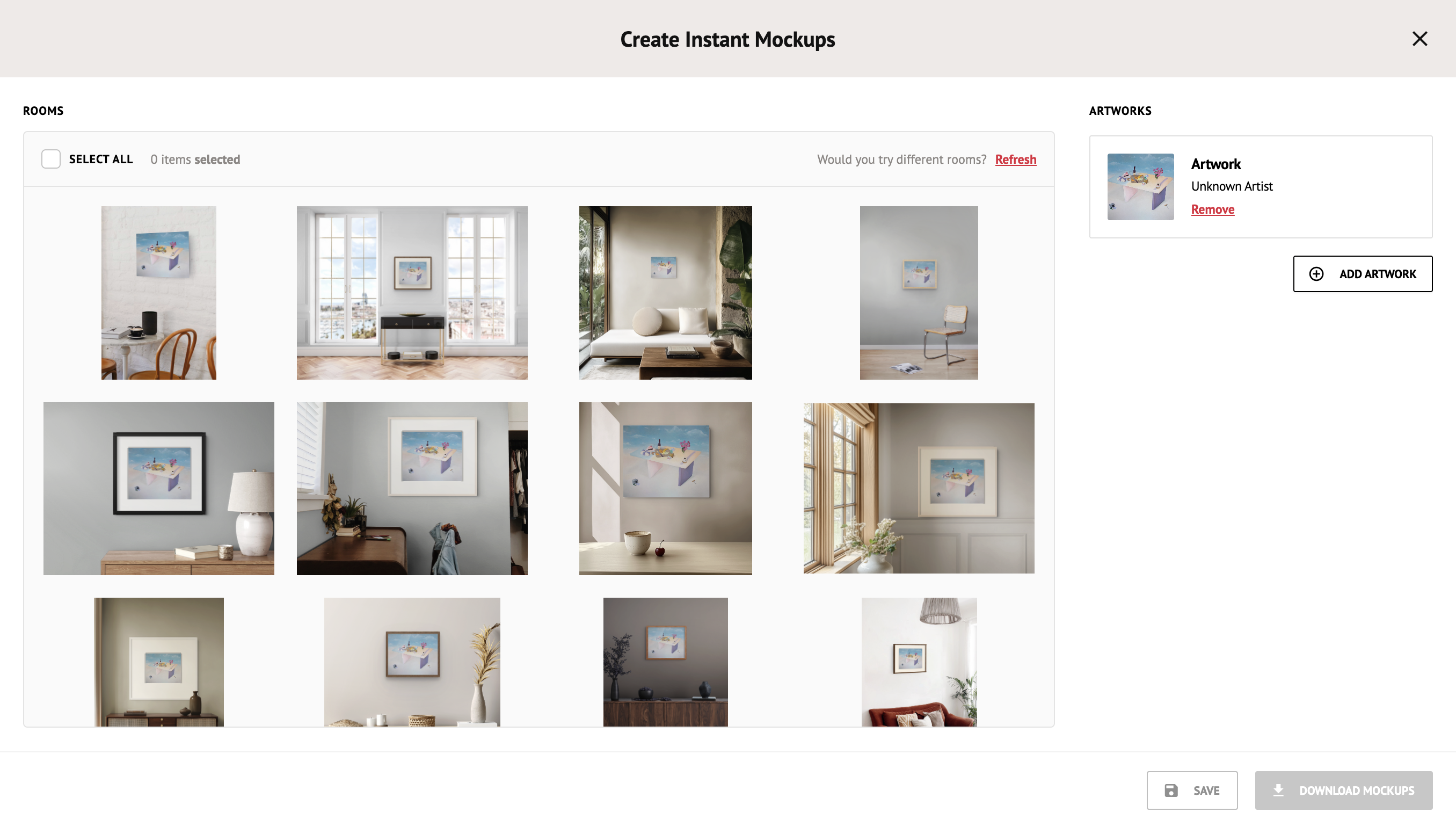
Once you start, ArtPlacer automatically creates 12 mockups for you, using a carefully chosen selection of rooms. The rooms you see are picked based on the size and shape of your Artwork, so they always look natural.
What You Can Do With Your Mockups
Once your mockups are ready, you'll see them all together on your screen. From there, you can:
Save the mockups you like
- Click on the mockups you like to select them, then click the SAVE button. For an easier experience, you can also use the SELECT ALL button to pick every mockup at once.
- A window will pop up where you can either ADD TO EXISTING FOLDER or CREATE NEW FOLDER.
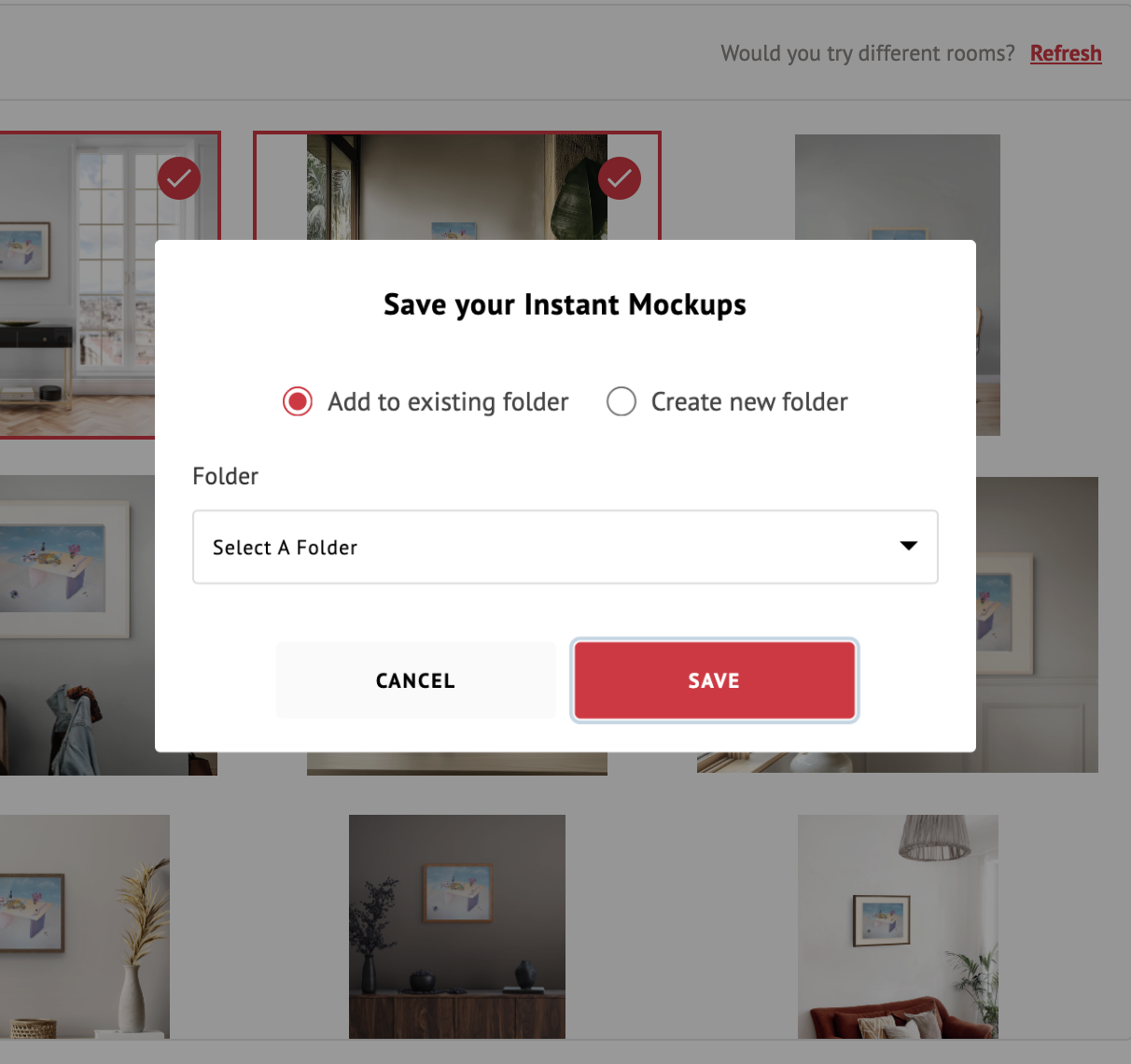
- The mockup is saved with an automatic name: "Name of the Artwork_N.jpg" (the "N" is simply the number of the Artwork you used).
You can rename your saved mockup later from My Designs.
Download the mockups you like
- Click on the mockups you like to select them, then click the DOWNLOAD button. For an easier experience, you can also use the SELECT ALL button to pick every mockup at once.
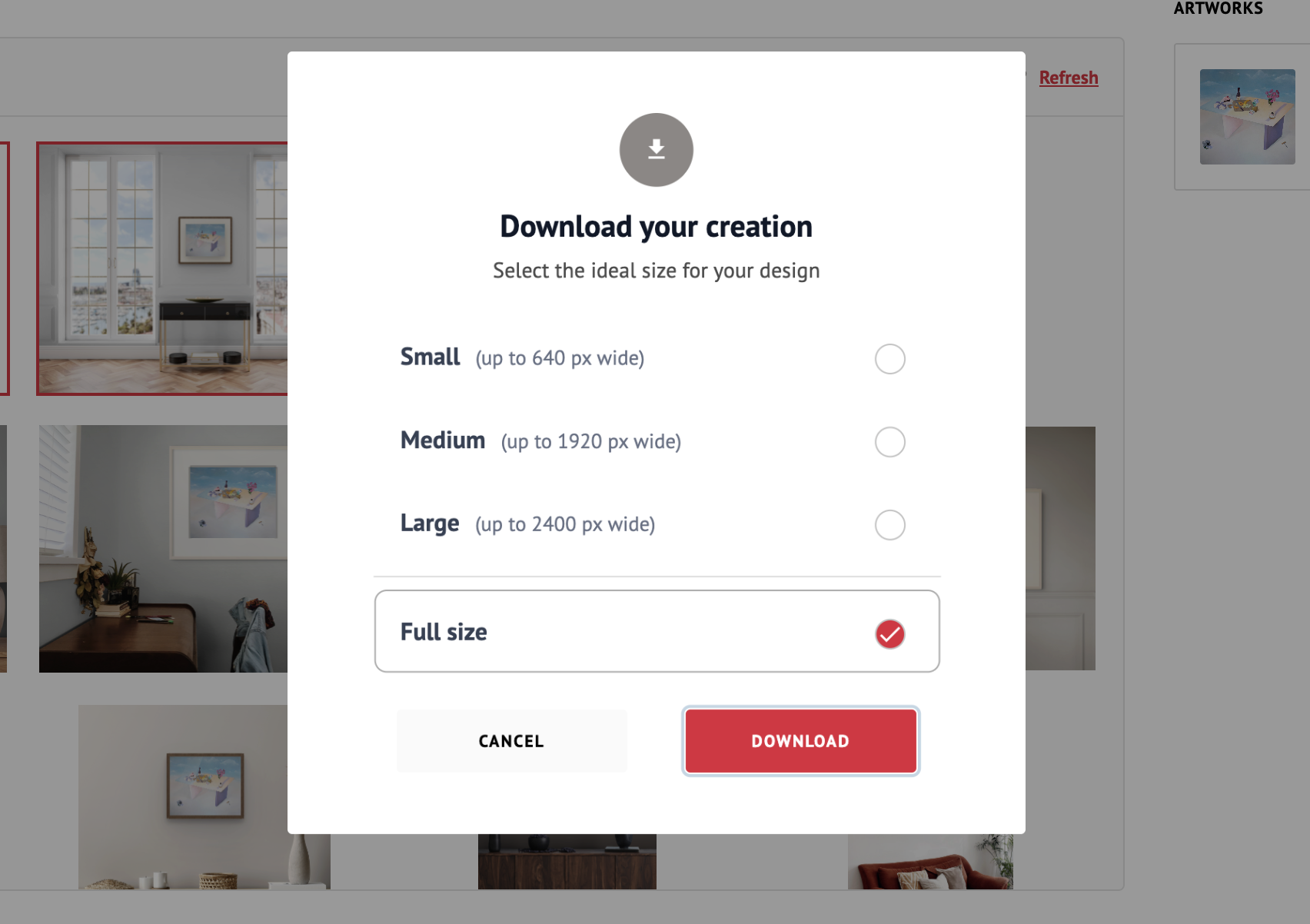
- First, choose the quality you'd like to download.
- While your download is getting ready, you'll see it in a small list inside the same window.
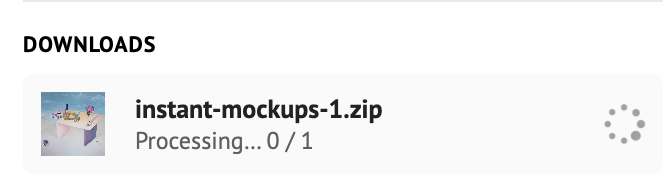
- Your downloaded file will be named: Name of the Artwork_N-Download quality selected.jpg (for example, Flores_1-full.jpg).
When you download several mockups at once, they'll come together in one .zip file (a single folder that holds all the images).
⚠️ Download limits depend on your plan.
See a different set of mockups
- If you'd like to see new mockups, click REFRESH.
- If you had already picked some mockups you liked, a warning will pop up letting you know that refreshing will clear your choices. You'll be able to SAVE SELECTION first, or REFRESH ANYWAY.