Table Of Contents
- What Are Viewing Room Selections?
- How Visitors Send a Selection
- How To Turn On Selections
- What You Receive
- Selections vs. Inquire
- You’re All Set
Do your visitors often fall for more than one Artwork? With Viewing Room Selections, they can mark all the pieces they like and send you the whole list in one go, without writing a separate email. It’s a simple way to learn what caught their eye, and what to talk about next.
What Are Viewing Room Selections?
Viewing Room Selections let a visitor browsing your Viewing Room flag the artworks they’re interested in and send that list straight to you. For each piece, they can also say how much they like it and leave a short comment.
- Selections are available to everyone who has access to Viewing Rooms. No extra plan is needed.
- You choose, Viewing Room by Viewing Room, whether Selections are available.
- If Selections are turned off, visitors won’t see any of the Selections options in that Viewing Room.
How Visitors Send a Selection
Here’s what your visitors will see and do:
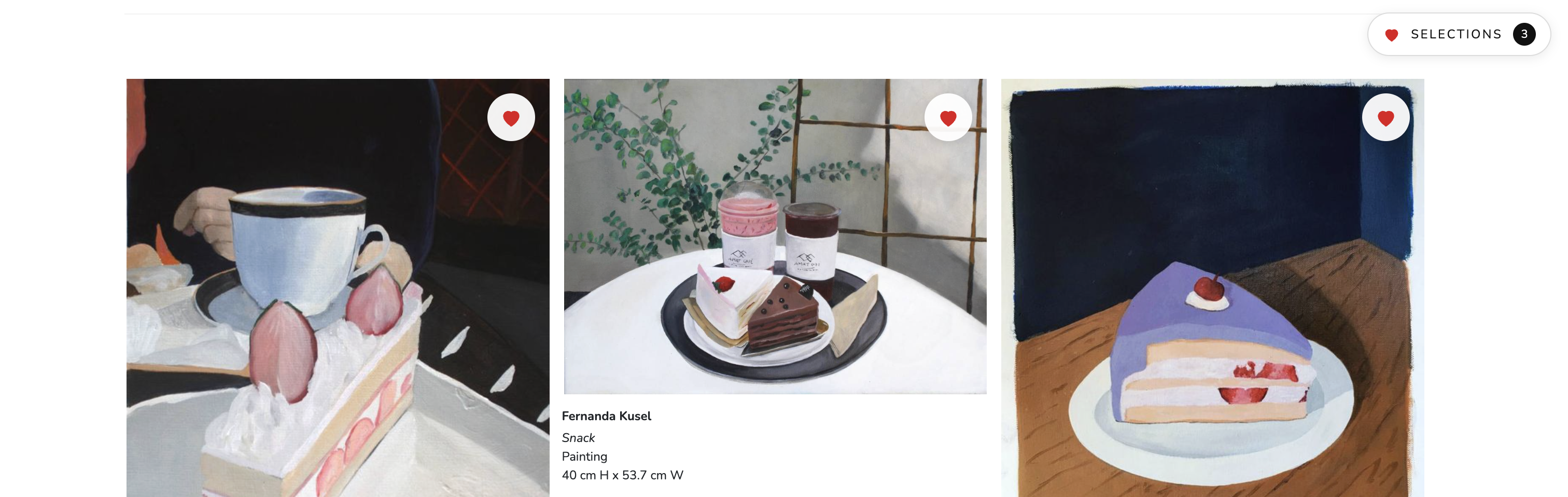
- Tap the heart on each artwork they’d like to save.
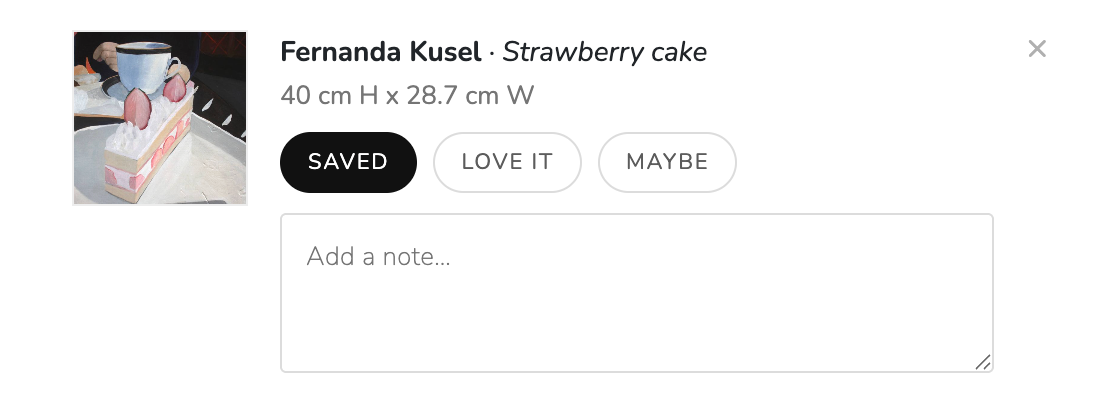
- For each saved artwork, choose Love it or Maybe, or simply leave it as saved.
- Add an optional note to each artwork, such as where they’d hang it or a question about framing.
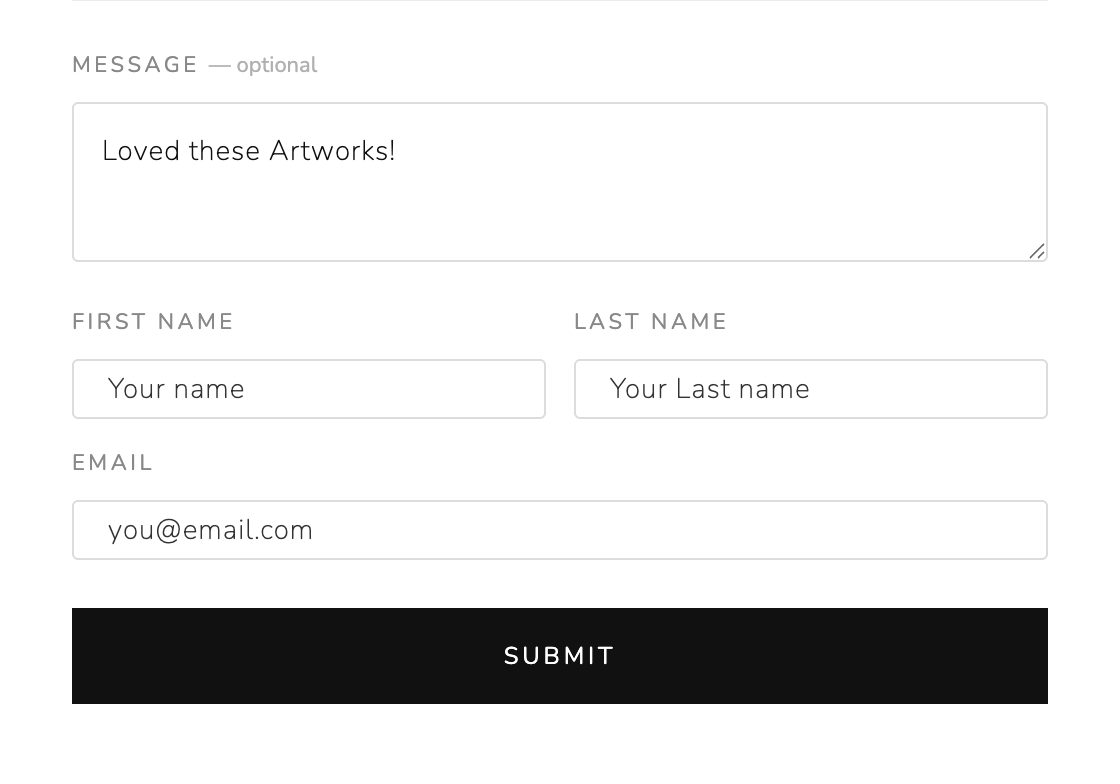
- Add an optional message in the MESSAGE field, such as timeline, budget range, or questions.
- Fill in their first name, last name, and email.
- Send the selection. They’ll see a confirmation, and their list will clear.
Note: While visitors browse or reload the page, their saved Artworks stay in place. They’re stored in the visitor’s browser until the selection is sent.
How To Turn On Selections
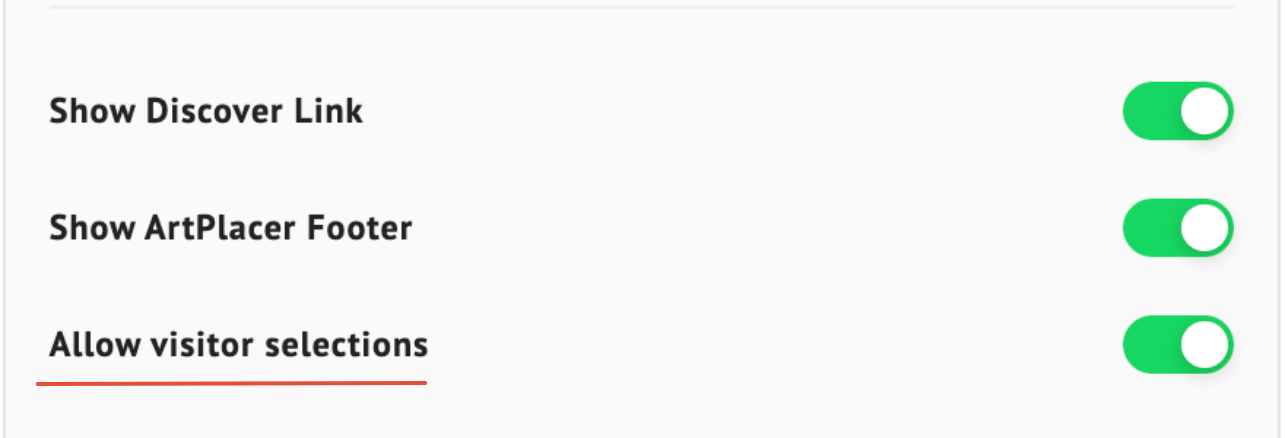
Selections are turned on with a toggle, just like SHOW DISCOVER LINK and SHOW ARTPLACER FOOTER.
- While curating your Viewing Room, go to step 3, Final Touches.

- Find the ALLOW VISITOR SELECTIONS toggle and turn it on.
- Finish your Viewing Room as usual: PREVIEW IN NEW TAB, SAVE AS DRAFT, or GO LIVE.
Tip: The toggle is set for each Viewing Room, so you can offer Selections in some Viewing Rooms and not in others.
For the full Viewing Room setup, see How To Set Up a Viewing Room.
What You Receive
When a visitor sends you a selection:
- A new contact: The visitor is added to your Contacts automatically, so you can follow up with them.
- A message in your Inbox: You’ll see the message the visitor wrote.

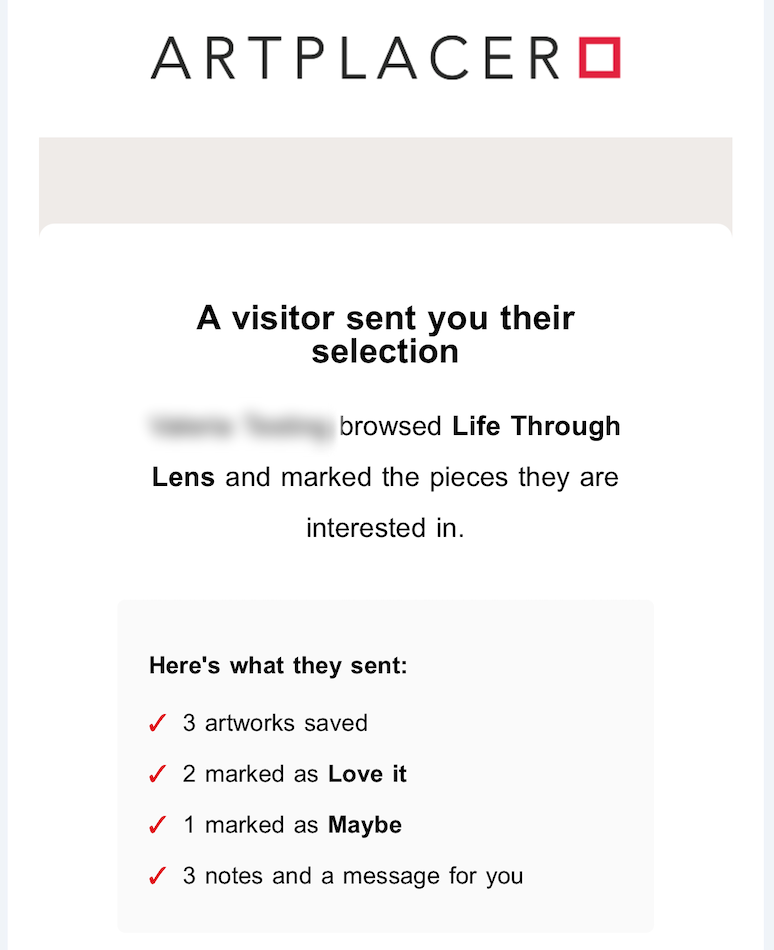
- An email with the details: You’ll receive an email with the selection itself: the artworks, how much the visitor liked each one, and their notes.
- A real email address: ArtPlacer checks that the visitor’s email is valid before accepting the selection, so you don’t end up with fake contacts.
Note: Selections go through the same security check as inquiries, so they can take up to 30 minutes to appear. Learn more in Why Some Messages May Not Show Up on Inbox.
Selections vs. Inquire
They’re two different tools, and you can offer both in the same Viewing Room.
- Selections let a visitor say “I liked all of these,” show how much they liked each piece, and leave a comment.
- Inquire works individually: the visitor contacts you about one artwork at a time.
You’re All Set
Selections are an easy way for visitors to tell you what they love, and for you to start the conversation with the right context. Turn them on in your next Viewing Room and see what your visitors choose!
FAQs
- I don’t see the heart in my Viewing Room. What’s going on?
Selections may be turned off for that Viewing Room. Go to step 3, Final Touches, and check that ALLOW VISITOR SELECTIONS is on. - Do I need a special plan to use Selections?
No. Everyone with access to Viewing Rooms can use Selections. - A visitor says they sent a selection, but I didn’t receive it. What should I do?
Wait up to 30 minutes, since every selection goes through a security check. If it still hasn’t arrived, our Support team can look into it. Just share the Viewing Room and the visitor’s email.