Table Of Contents
Want your visitors to be able to save their favorite artworks and send you the list? Viewing Room Selections are turned on with one simple toggle, and in this article we’ll show you exactly where to find it.
Before You Start
- Selections are available to everyone who has access to Viewing Rooms, so no extra plan is needed. If you’re not sure about your plan, you can review the full list of features on our Pricing Page.
- Selections are set up for each Viewing Room, so you can turn them on in some Viewing Rooms and leave them off in others.
- If you haven’t created your Viewing Room yet, start with How To Set Up a Viewing Room.
How To Turn On Selections
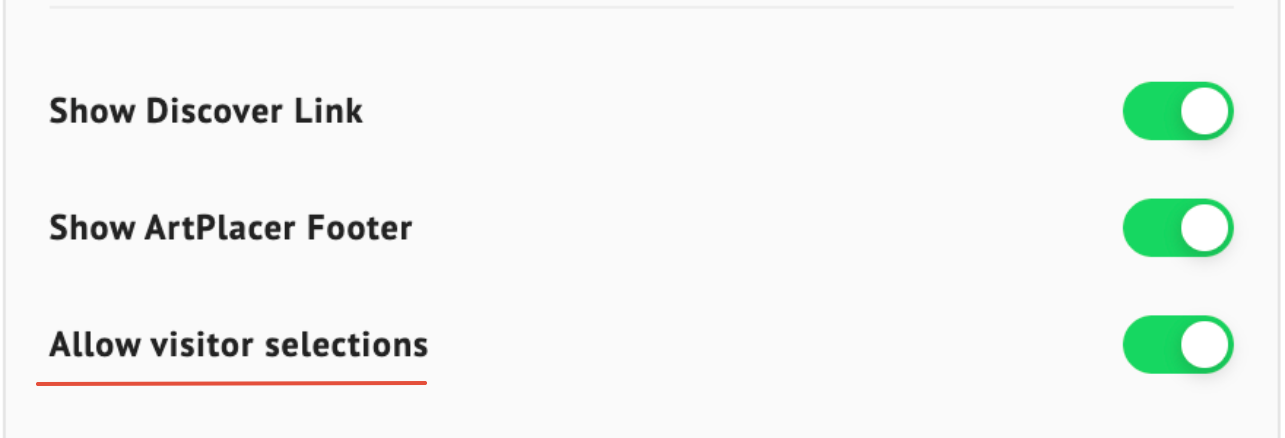
You’ll find the toggle in the last step of curating your Viewing Room, right next to Show Discover Link and Show ArtPlacer Footer.
- Within the Presentations section, open the Viewing Room you’d like to edit, or create a new one. (If you need a refresher, see How To Set Up a Viewing Room.)
- Go to step 3, Final Touches.

- Find the Allow visitor selections toggle and turn it on. It turns green when it’s active.
- Continue as usual: PREVIEW IN NEW TAB, SAVE AS DRAFT, or GO LIVE.
Tip: Use PREVIEW IN NEW TAB to check how your Viewing Room looks to visitors before you share it.
What Your Visitors Will See
Once Selections are on, visitors can:
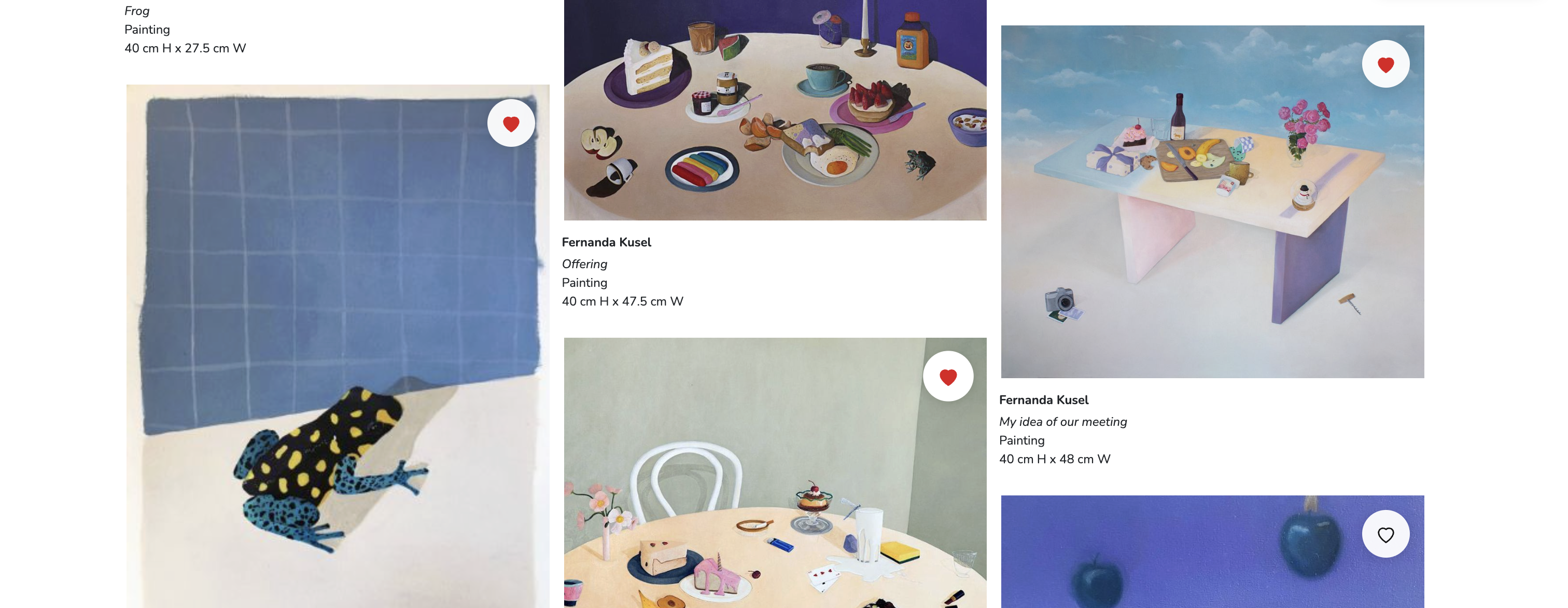
- Tap the heart on any artwork to save it.
- Choose Love it or Maybe for each saved artwork, or leave it as saved.
- Add an optional note to each artwork.
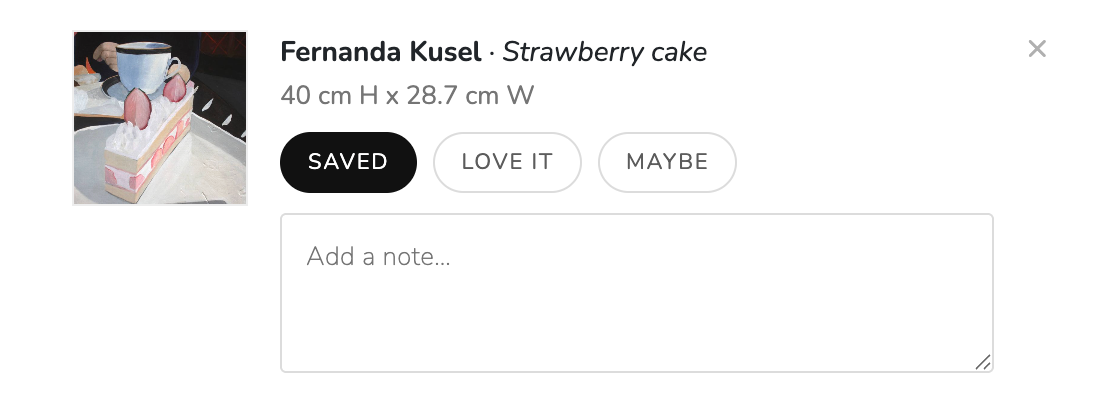
- Review their list, add an optional message, and send it to you with their first name, last name, and email.
Want the full picture? Read What Are Viewing Room Selections.
How To Turn Off Selections
If you’d rather not offer Selections in a Viewing Room, go back to step 3, Final Touches, and turn off Allow visitor selections. When the toggle is off, none of the Selections options appear in that Viewing Room.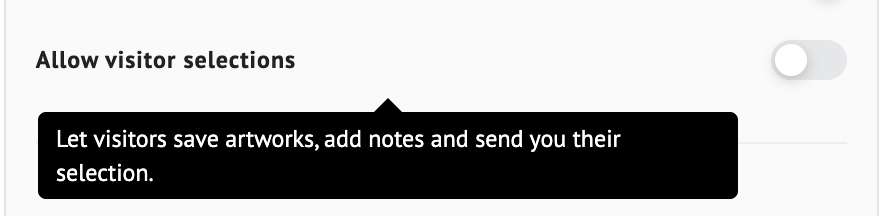
Tips
- Selections and Inquire can work side by side. Selections are perfect when a visitor likes several artworks, and Inquire is great for questions about one piece.
- Not seeing the heart on your Viewing Room? The first thing to check is that Allow visitor selections is turned on.
You’re All Set
With one toggle, your Viewing Room becomes a place where visitors can tell you which artworks they love. Turn it on and let the conversations begin!
FAQ
Where is the Selections toggle?
In step 3, Final Touches, of your Viewing Room. It’s called Allow visitor selections.
Do I need to turn it on for each Viewing Room?
Yes. It’s a setting for each Viewing Room, so you decide where to offer it.
Do I need a special plan to turn on Selections?
No. Everyone with access to Viewing Rooms can use Selections.
I turned it on, but I still don’t see the heart. What should I do?
Check that Allow visitor selections is on and that you saved your changes. Then open your Viewing Room again to refresh it.
Where will I see the selections my visitors send?
You’ll get an email with the details, and a new contact will be created for the visitor. Learn more in What Are Viewing Room Selections.