Table of Contents
- What Is Lean Against Wall?
- Artwork Options in Room Mockups, Personal Spaces and Art Show Planner
- How To Make an Artwork Lean Against the Wall
- How To Hang the Artwork Back on the Wall
- FAQs
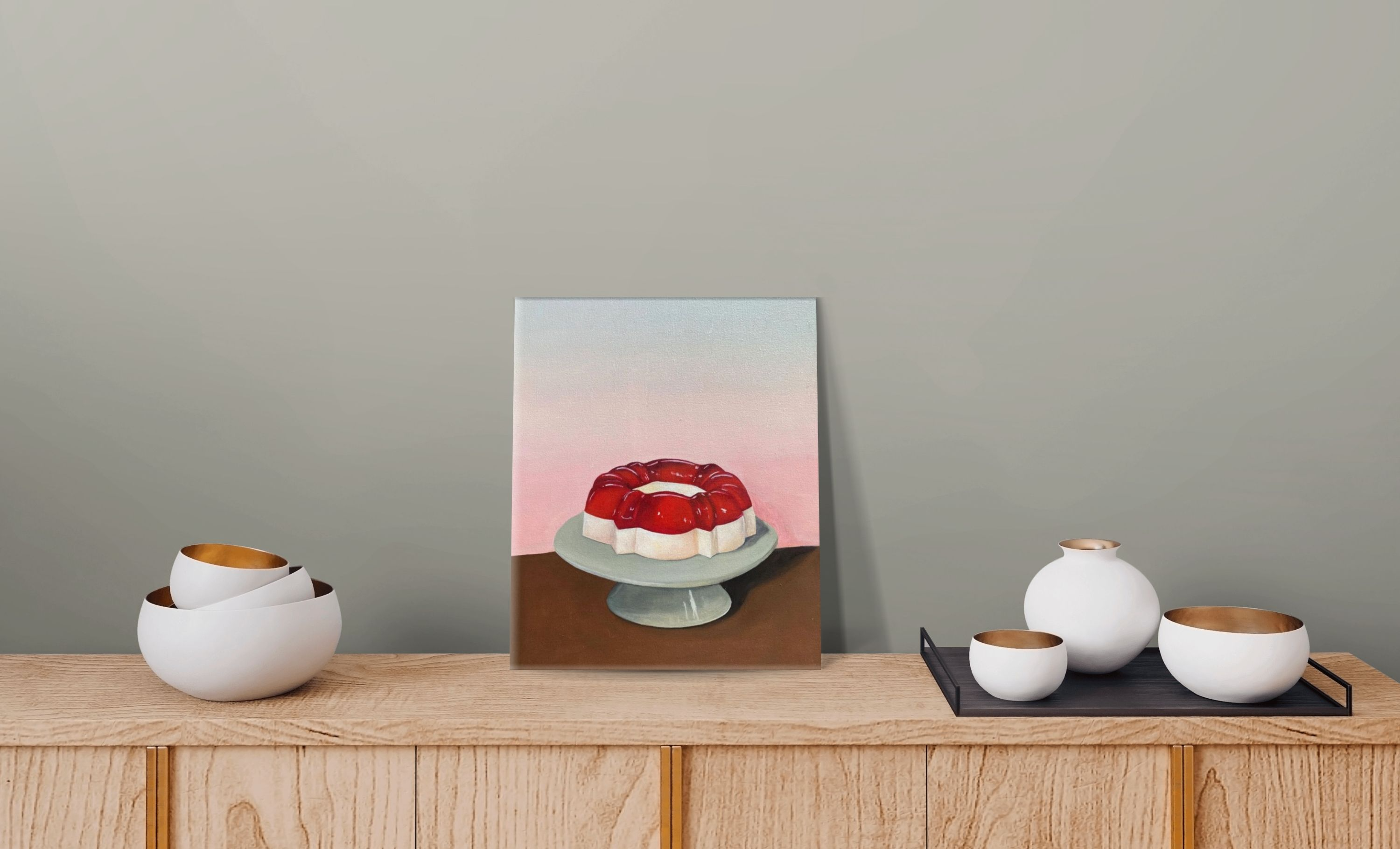
Want your Artwork to look like it’s resting on a desk, a shelf, or the floor instead of hanging on the wall? With the Lean Against Wall option, your Artwork tilts slightly so it looks naturally propped up. It’s a simple way to make your Room Mockups, Personal Spaces, and Art Show Planner designs feel more realistic
What Is Lean Against Wall?
Lean Against Wall gives your Artwork a slight tilt so it looks like it’s leaning on the wall rather than hanging on it. It’s perfect for showing pieces placed on a desk, a table, or the floor.
Note: This option is available in Room Mockups, Personal Spaces, and Art Show Planner on regular walls. On walls in perspective, it appears grayed out and can’t be selected
Artwork Options in Room Mockups, Personal Spaces, and Art Show Planner
When you add and select an Artwork, two buttons appear next to it:
- Replace Artwork: the image icon, which lets you swap the image for a different Artwork.
- Three dots (⋮):opens a menu with more options:
- Duplicate Artwork: creates a copy of the Artwork.
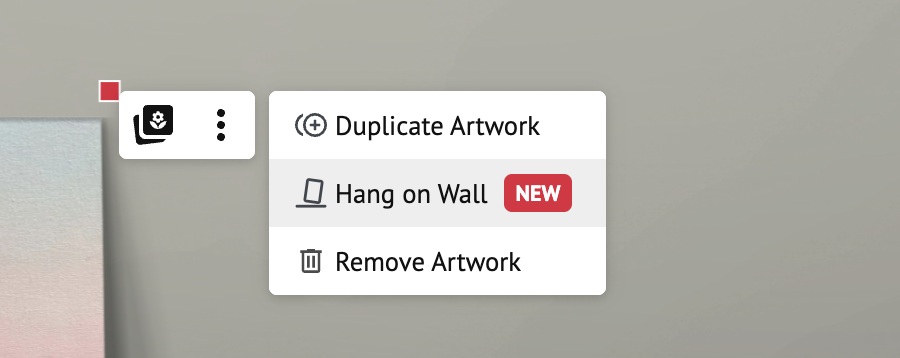
- Lean Against Wall: tilts the Artwork so it looks like it’s leaning on the wall. Once your Artwork is leaning, this option changes to Hang on Wall.
- Remove Artwork: removes the Artwork from the room.
How To Make an Artwork Lean Against the Wall
- Open the Room Mockups, Personal Spaces or Art Show Planner section and place an Artwork in a space.
- Click (or tap) the Artwork to select it.
- Click the three dots (⋮) next to the Artwork.
- Select Lean Against Wall.
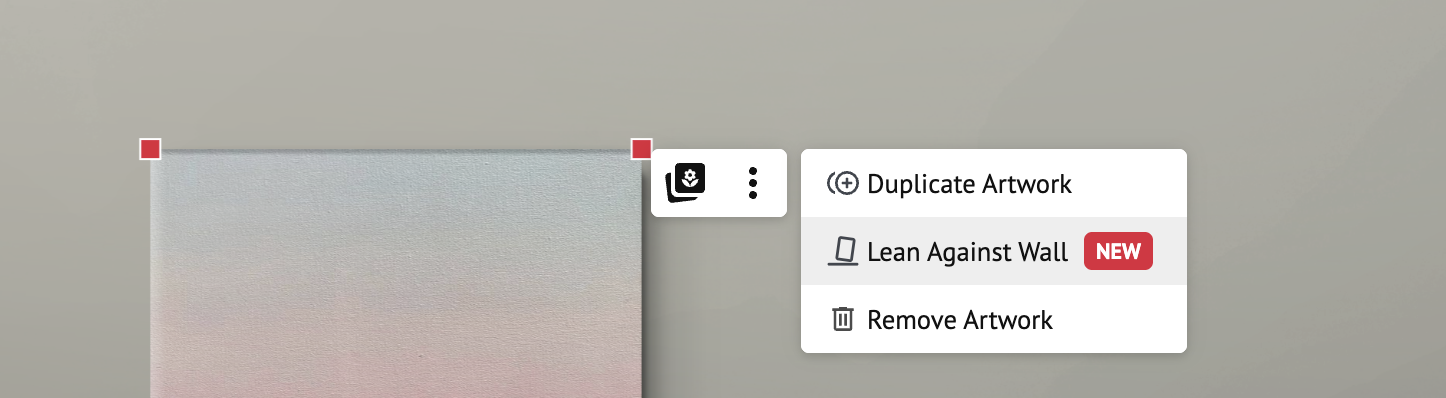
Your Artwork will tilt slightly, as if it were resting against the wall.
How To Hang the Artwork Back on the Wall
- Click (or tap) the leaning Artwork to select it.
- Click the three dots (⋮).
- Select Hang on Wall.
Your Artwork will go back to its original position on the wall.
Tips for a More Realistic Look
We recommend playing with the LIGHTING settings when using this effect.
You can adjust the shadow direction, spread, and opacity, as well as the brightness and contrast, so the Artwork blends better with the room. Learn more in How To Adjust the Lighting, Size, and Position of an Artwork in a Space.
FAQs
Why is Lean Against Wall grayed out?
This option isn’t available on walls in perspective. It works on regular walls only.
Can I go back to hanging my Artwork on the wall?
Yes! Select the Artwork, click the three dots (⋮), and choose Hang on Wall.