Create printable labels with the essential information of your Artworks, ready for physical art shows, exhibitions and fairs.
Table of Contents
Initial Considerations
- An active trial, Plus plan, or any Business plan subscription is required to access this feature.
- You must upload your Artworks to your ArtPlacer account and include all the relevant information you wish to display on the labels, such as YEAR, MEDIUM, MATERIAL, DIMENSIONS and PRICE. Learn more about what you can include in an Artwork and How To Upload Artworks.
- Only public Artworks can be included in your labels. Make sure This artwork is public is checked in the LISTING & LINKS tab of each Artwork.
What Are Artwork Labels?
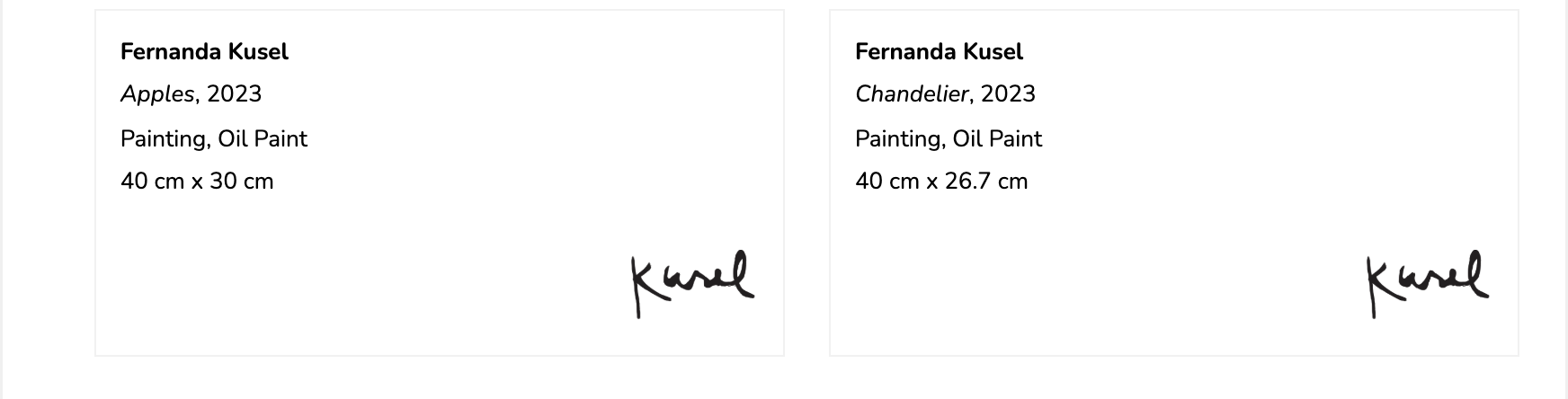
You can easily generate printable labels featuring essential Artwork information (download an example at the bottom of the page). Whether you’re a Gallery, Artist or Photographer, you can take advantage of the details you’ve already uploaded to quickly create identification labels for physical art shows, exhibitions and fairs.
Labels use the details saved in each Artwork. If you want to change something that appears on a label, edit the Artwork first. See How To Edit My Artworks.
How To Create Artwork Labels
- Go to Sidebar > My Creations > Presentations. You can also select your Artworks in the Artworks section and click CREATE PRESENTATION using Bulk Actions. Learn more about the Artworks section.
- Click (or tap) Artwork Labels.
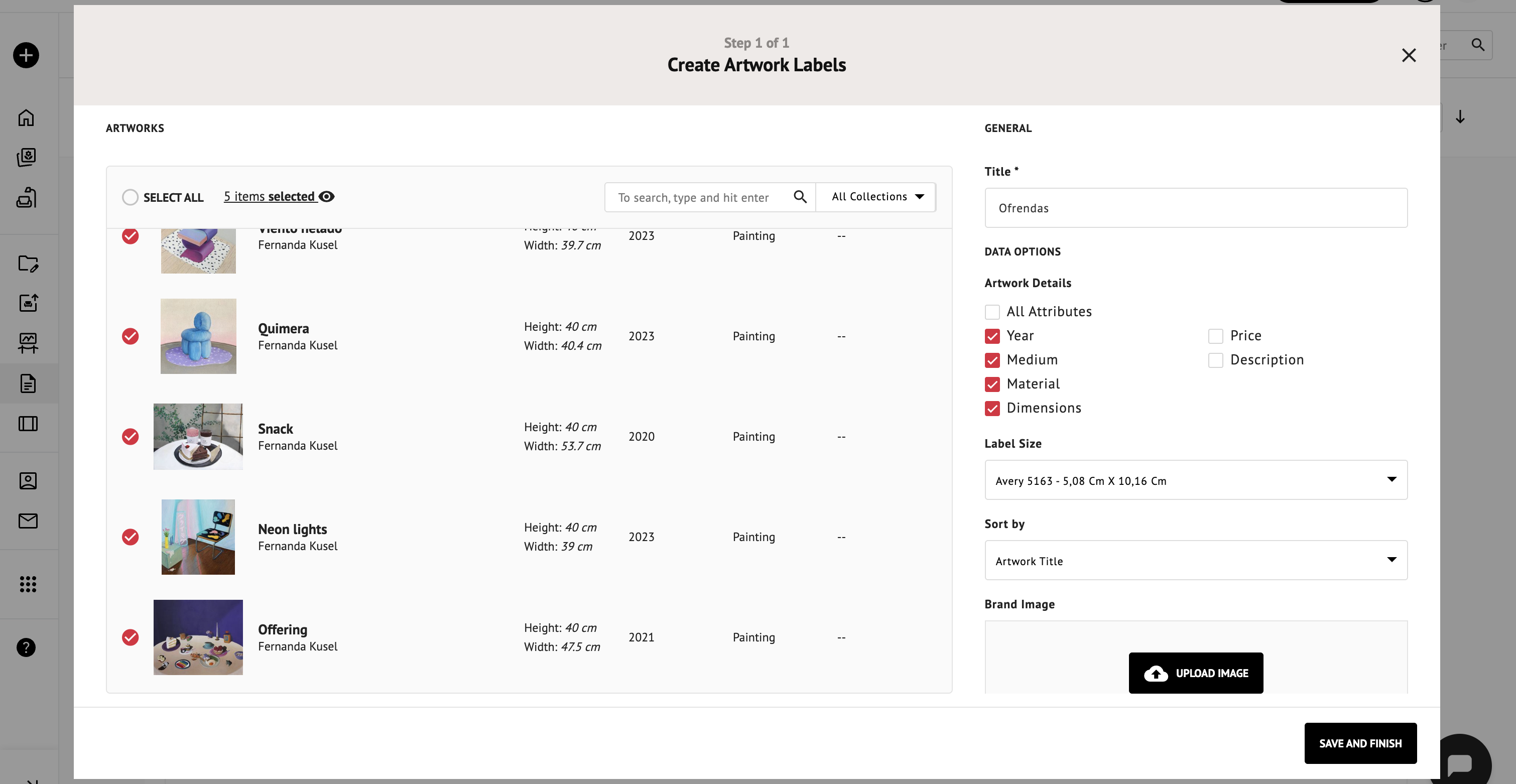
- Assign a Title.
- Select the Artwork(s) you want to create labels for.
- Enable the Artwork details you want to include, such as Year, Medium, Material, Dimensions and Price.
- Choose the Label Size.
- Sort the labels by Artwork Title, Artist Name or Year.
- Upload a Brand Image (max image size: 50 MB; supported files: JPG or PNG).
- Click (or tap) SAVE AND FINISH and you’re all set!
You can now PRINT the whole presentation on paper or to a PDF file, and share the URL generated.
Troubleshooting
If an Artwork you’ve selected is missing from your labels, it may be private. Private Artworks are not displayed.
To fix it:
- Open the Artworks section.
- Hover over the Artwork and click (or tap) the pencil icon.
- Open the LISTING & LINKS tab.
- Check This artwork is public.
- Click SAVE ARTWORK.
Learn more in How To Change an Artwork’s Privacy.
You’ll find an example attached for reference. You can also view it by following this link.