In ArtPlacer, an Artwork is any piece you want to showcase: a painting, sculpture, photo or digital creation.
You’ll manage all your Artworks in the Artworks section of your account. This article shows you how to upload them one by one, several at a time, or in bulk with a CSV file, and what you can add to each one.
Table of Contents
- Before You Start
- How To Upload a Single Artwork
- What You Can Add to Your Artwork
- How To Upload a Multiple Selection of Artwork Files
- How To Import Multiple Artwork Files from Other Platforms Using a CSV File
Before You Start
- Accepted file formats: JPG, JPEG, PNG, WEBP and GIF.
- The file size cannot exceed 50 megabytes.
- The file resolution cannot exceed 258 megapixels.
- The number of Artworks you can upload depends on your plan. If you reach your plan’s limit, you won’t be able to add more until you free up space or change your plan. To see what’s included in each plan, follow this link.
Note: The only things you need to save an Artwork are a TITLE and an IMAGE. Everything else is optional, but the more you add, the richer your Artwork page, catalog and presentations will look.
How To Upload a Single Artwork
- Go to the Artworks section and click (or tap) the red UPLOAD ARTWORKS button.
- Select Upload Single Artwork from the menu.
- Click (or tap) UPLOAD ARTWORK IMAGE and choose your image.
- (Optional) Once your image is uploaded, click Remove background (Beta) to cut out the background with one click. If you don’t like the result, you can undo it. This option is available for 2D Artwork and Sculpture, but not for GIF files.
- Choose the TYPE of Artwork: 2D Artwork, Sculpture, Digital or Video.
- Enter a TITLE (up to 60 characters).
- Fill in any other details you’d like. You’ll find them organized in three tabs: BASIC INFORMATION, LISTING & LINKS and INVENTORY (see the next section).
- Click (or tap) SAVE ARTWORK to finish.
Tip: You can save your Artwork with just a title and an image, and come back later to complete the rest. Here’s how to edit your Artworks.
What You Can Add to Your Artwork
The form is divided into three tabs.
BASIC INFORMATION:
About the piece
- TITLE*: The name of your piece (up to 60 characters).
- ARTIST: The artist’s name (up to 70 characters).
Details
- TYPE: 2D Artwork, Sculpture, Digital or Video.
- MEDIUM: Choose it from your gallery’s catalog.
- DIMENSIONS*: Enter the HEIGHT* and WIDTH of your piece, and choose the unit of measurement from the menu next to them (it shows Cm by default). Each dimension can go up to 1000.
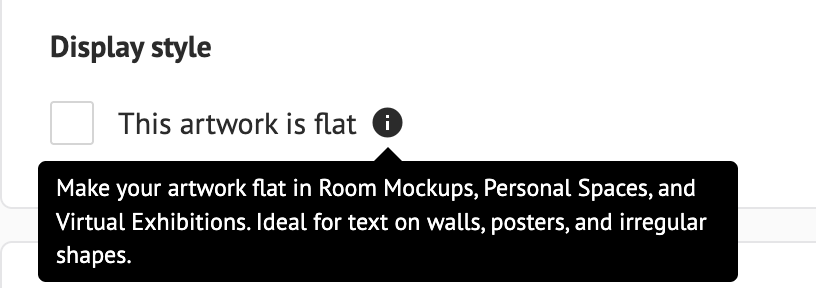
- DISPLAY STYLE: A checkbox that reads This artwork is flat.
Additional
- YEAR: The year the piece was made.
- PRICE (USD $): The price of your piece .
- DESCRIPTION: A free-text description (up to 1000 characters).
LISTING & LINKS
Listing
- COLLECTION: Add the Artwork to one of your Collections.
- ORIENTATION: Landscape (horizontal) or Portrait (vertical).
- MATERIAL: The material your Artwork is made of, such as acrylic, canvas, metal, etc.
- This artwork is public: Check this box if you want your Artwork to be visible to the public (in your catalog and presentations). It’s checked by default. Uncheck it to keep the Artwork private.
To learn more, see What’s the Difference Between Public and Private Artworks? - This piece is sold.
- COLORS: Pick the colors that represent your piece. They help you sort and filter your Artworks.
Links
- PURCHASE URL: Where someone can buy the piece.
- VIEW MORE URL: An external page, such as your social media.
- NFT URL: A link to the NFT.
- VIDEO URL: A video link, such as YouTube.
INVENTORY
The INVENTORY tab is available depending on your plan. Business accounts have access to it.
It’s a private space for your own records: none of this information appears in your CSV, your widget, your Virtual Exhibitions or your Discover Profile.
Valuation
- FAIR MARKET VALUE (USD $)
Records
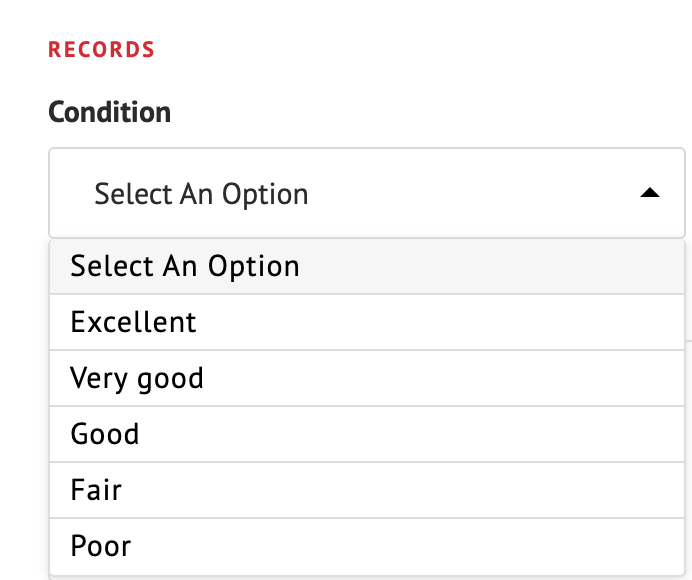
- CONDITION: Choose an option from the menu.
- PROVENANCE: The history of the piece, such as ownership history, exhibitions and publications (up to 2000 characters).
- NOTES: Anything else you want to keep track of (up to 1000 characters).
How To Upload a Multiple Selection of Artwork Files
- Go to the Artworks section and click (or tap) the red UPLOAD ARTWORKS button.
- Select Upload Multiple Artworks from the menu.
- Click (or tap) the + sign or the browse button to open your device’s file explorer. You can also drag and drop your files onto the marked area.
- Select the files you want to upload.
- Click (or tap) UPLOAD ARTWORKS to start the upload.
Tip: Hover over an Artwork’s thumbnail and click (or tap) the pencil icon to start editing its basic information before uploading.
How To Import Multiple Artwork Files from Other Platforms Using a CSV File
If you have a large number of Artworks, or you’re moving from another platform, you can upload all their details at once using a spreadsheet file. It saves a lot of time compared to adding them one by one.
Information from the INVENTORY tab isn’t included in the CSV file.
For the full guide on preparing and uploading your CSV file, see How To Upload My Artworks Using a CSV File (Bulk Upload).