ArtPlacer allows you to upload Artworks of any shape, including round Artworks and sculptures. Follow the steps below to make sure your Artwork displays correctly in the platform.
Table of Contents
1. Upload Your Artwork
- Go to the Artworks section in your ArtPlacer account.
- Click (or tap) UPLOAD ARTWORKS and select Upload Single Artwork.
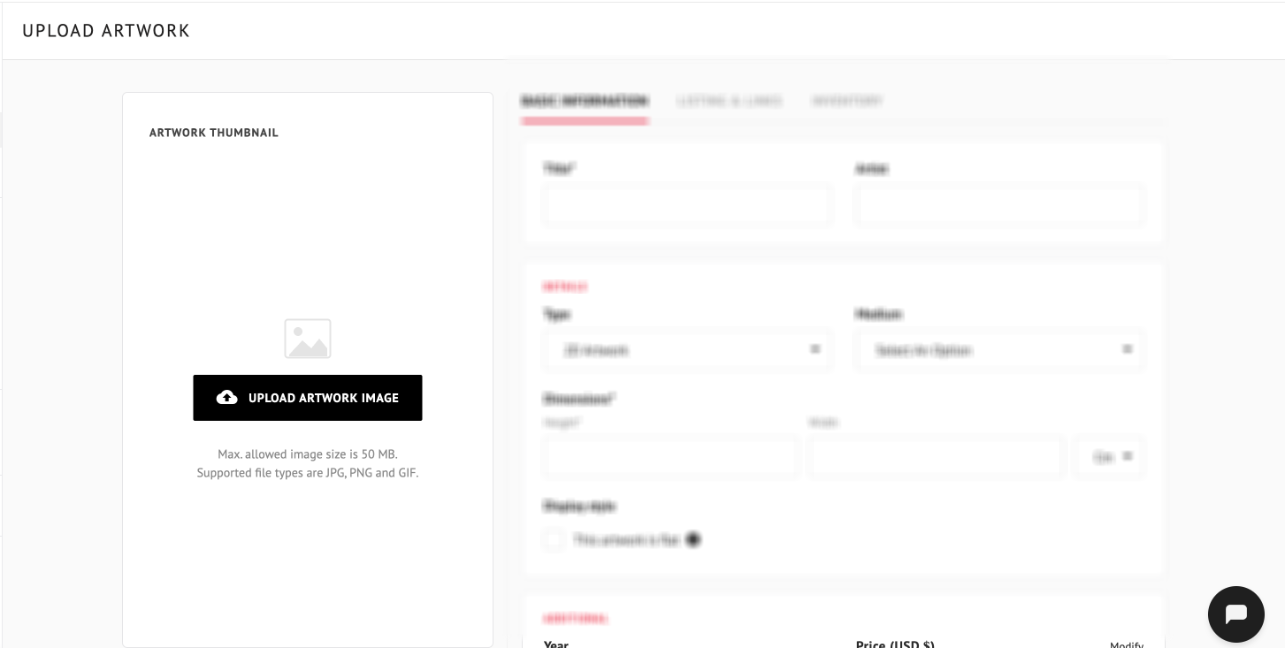
- Under ARTWORK THUMBNAIL, click UPLOAD ARTWORK IMAGE and select your file.
2. Remove the Background
Removing the background is very important so that irregular shapes (like circles, sculptures, or Artworks that aren’t perfect rectangles) display correctly in your virtual spaces.
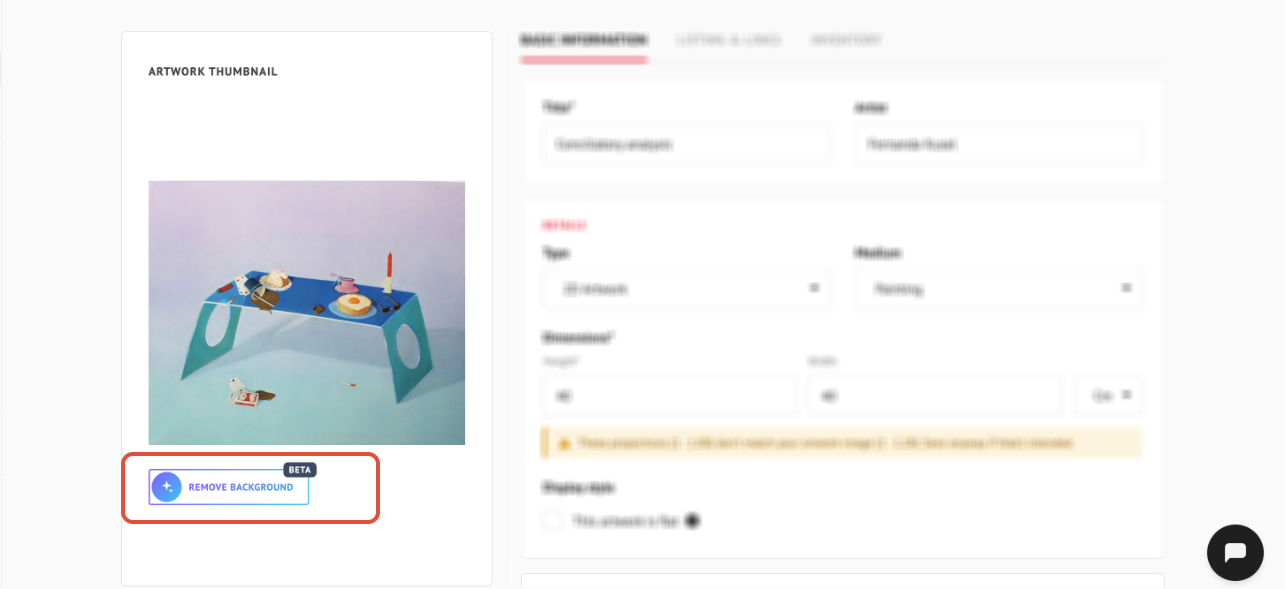
Once your image is uploaded, click Remove background (Beta) to cut out the background with one click. If you don’t like the result, you can undo it.
This option is available for 2D Artwork and Sculpture, but not for GIF files.
Note: You don’t need to check any box for transparent backgrounds. ArtPlacer detects transparency automatically from your image.
If you prefer to remove the background yourself
You can also prepare your image before uploading it.
- Use a photo editing tool or a free online background remover to create a transparent background.
- Save your file as a PNG, since this format supports transparent backgrounds.
- Upload that PNG file to ArtPlacer.
3. Choose the Right Type
In the BASIC INFORMATION tab, choose the TYPE of your Artwork:
- If your piece is a sculpture, choose Sculpture.
- If your piece is a round or irregularly shaped 2D piece, choose 2D Artwork.
Then enter your TITLE and DIMENSIONS, and click SAVE ARTWORK.
Note: This step is important for any Artwork that isn’t a standard rectangle, including round pieces or sculptures.
4. Using Your Artwork
Once uploaded and saved:
- Your Artwork is ready to be used in Room Mockups, Personal Spaces or Virtual Exhibitions.
- Sculptures can be treated like standard Artworks in the Artworks section and placed on pedestals, tables or other surfaces in your virtual spaces.