Once you’ve uploaded an Artwork, you can update not only the image but also all its details. Keeping your Artworks up to date helps your catalog stay organized, accurate and attractive for potential buyers and viewers.
Table of Contents
- Open the Edit Page
- Edit the Artwork Image
- Remove the background
- Update Artwork Information
- Save Your Changes
Open the Edit Page
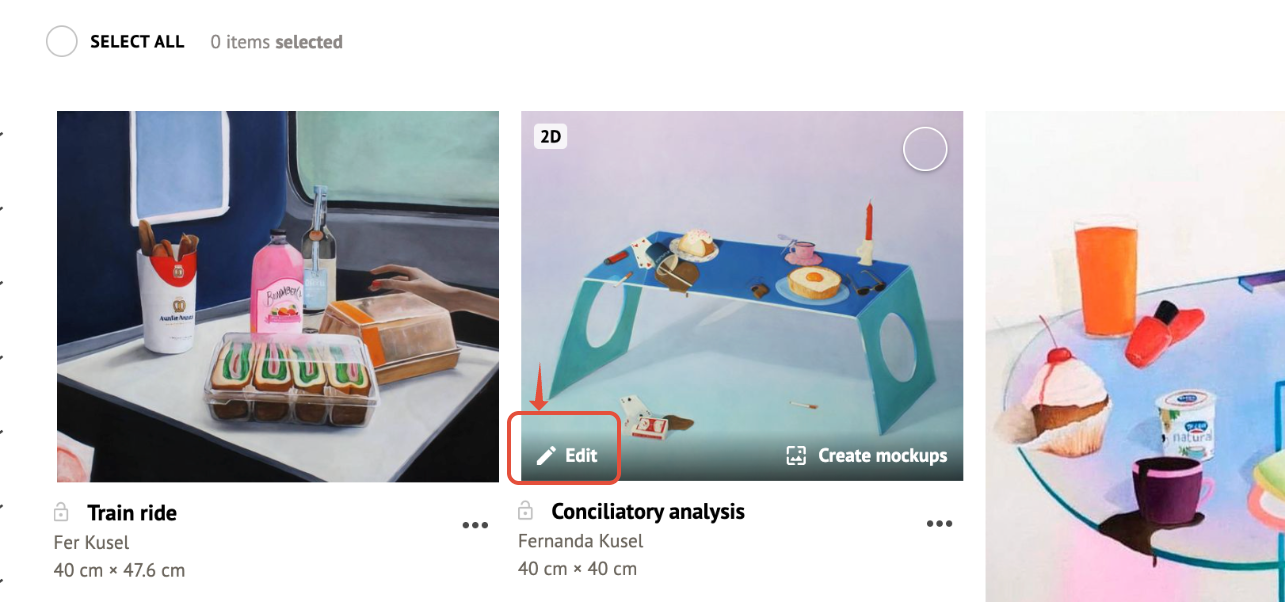
- Go to Sidebar > Artworks.
- Hover over the Artwork you want to edit and click (or tap) the pencil icon.
Edit the Artwork Image
Under ARTWORK THUMBNAIL, hover over the image and click Crop to open the editing options.
- Crop: Drag the handles on the corners or sides to adjust the visible area.
Click CONFIRM to apply your edits, or CANCEL to discard them.
Remove the background
Click Remove background (Beta) to cut out the background of your image with one click. If you don’t like the result, you can undo it.
This option is available for 2D Artwork and Sculpture, but not for GIF files.
Update Artwork Information
The form is organized in three tabs: BASIC INFORMATION, LISTING & LINKS and INVENTORY. Fields marked with an asterisk (*) are required. 
Important: The information you add here will appear in the Artwork’s details when the Artwork is added to a Virtual Exhibition and across ArtPlacer, except for the information in the INVENTORY tab, which is always private.
Tip: If you want to include something that doesn’t have its own field (such as contact details or special notes), add it in the DESCRIPTION field.
BASIC INFORMATION
The essentials: what the piece is and how big it is.
- TITLE*: The name of your piece.
- ARTIST: The artist’s name.
- TYPE: 2D Artwork, Sculpture, Digital or Video.
- MEDIUM: Choose it from your gallery’s catalog.
- DIMENSIONS*: Update the HEIGHT* and WIDTH of your piece, and choose the unit of measurement from the menu next to them (it shows Cm by default).
- DISPLAY STYLE: A checkbox that reads This artwork is flat.
- YEAR: The year the piece was made.
- PRICE (USD $): The price of your piece.
- DESCRIPTION: A free-text description (up to 1000 characters).
LISTING & LINKS
How your Artwork is shown and where people can learn more.
- COLLECTION: Add the Artwork to one of your Collections.
- ORIENTATION: Landscape (horizontal) or Portrait (vertical).
- MATERIAL: The material your Artwork is made of. Choose it from your gallery’s catalog.
- This artwork is public: Check it to make the Artwork visible to the public (Discover Profile - Virtual Exhibitions), or uncheck it to keep it private.
- This piece is sold.
- COLORS: Select the colors that represent your piece.
- PURCHASE URL: A link to where someone can buy the piece.
- VIEW MORE URL: An external page, such as your social media or gallery site.
- NFT URL: A link to the NFT.
- VIDEO URL: A video link, such as YouTube.
INVENTORY
The INVENTORY tab is available depending on your plan. Business accounts have access to it.
It’s a private space for your own records: none of this information appears in your CSV, your widget, your Virtual Exhibitions or your Discover Profile.
- FAIR MARKET VALUE (USD $)
- CONDITION
- PROVENANCE
- NOTES.
Save Your Changes
- Click (or tap) SAVE ARTWORK to update your Artwork.
- Or click CANCEL to discard your changes.